
Install Intermediate Certificate - IIS
Dec 15, 2025
Install Intermediate Certificate - IIS
|
OVERVIEW: This page walks you through the process of installing GlobalSign's Intermediate Certificate in Internet Information Services (IIS). For more Intermediate Certificate installation guides, please refer to this page. |
Guidelines
You can watch the following video for a tutorial.
Note: This is applicable from version 7 to its current version 10.
-
Search the intermediate certificate applicable for your certificate by going to Intermediate Certificates.
- Choose your intermediate certificate and click View in Base64.
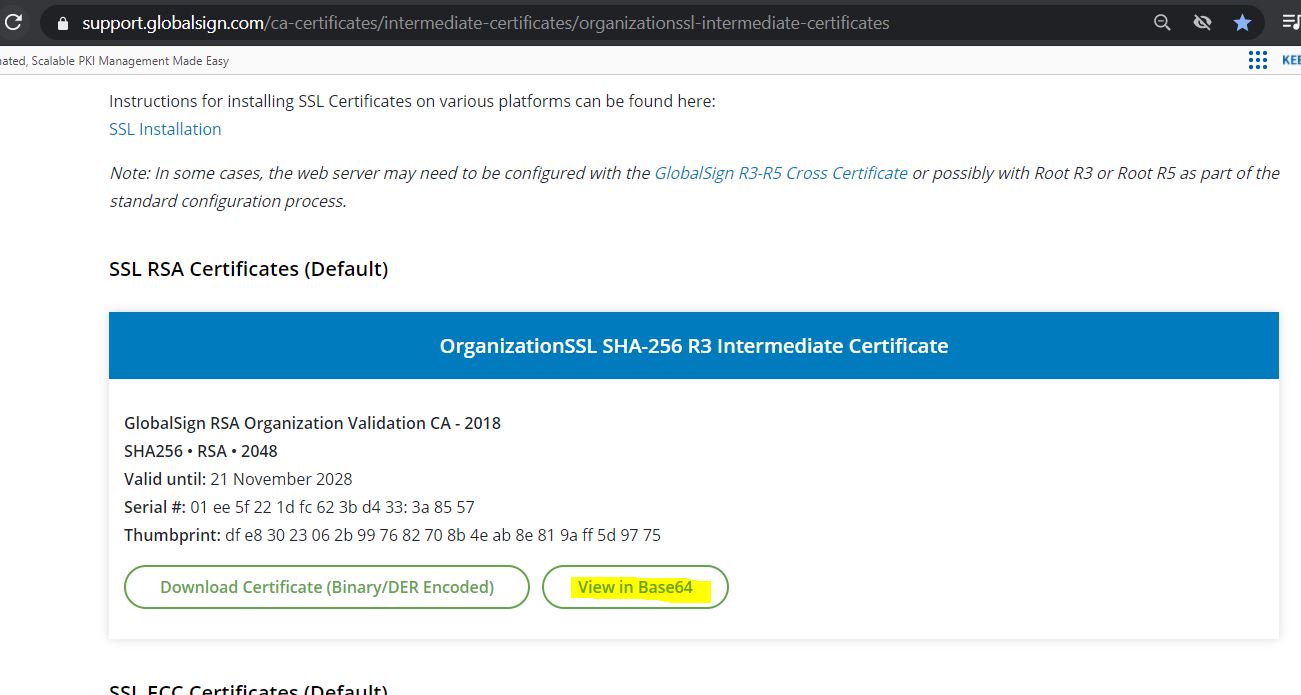
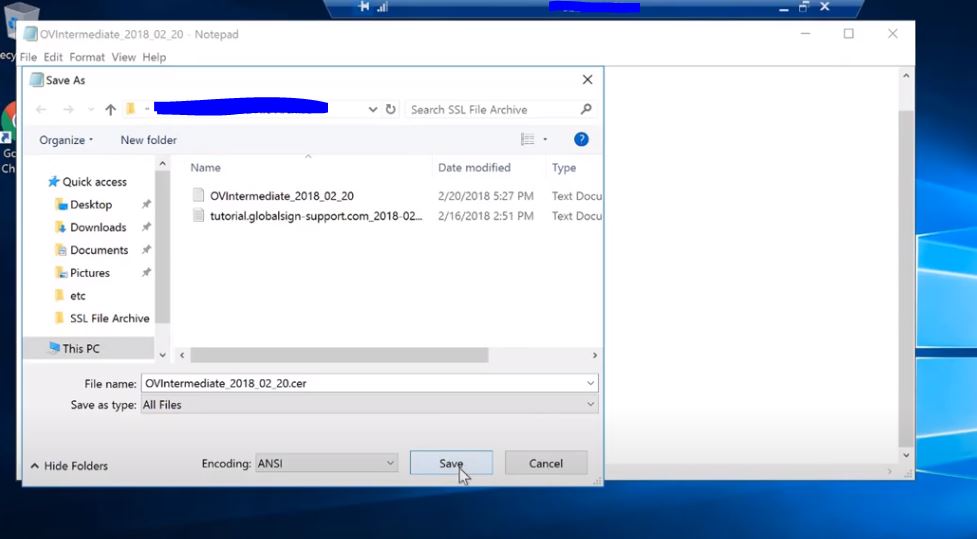
- Copy the PEM format and paste it on a notepad.
- Save the file as .cer
Note: Make sure to change the Save type as All Files.
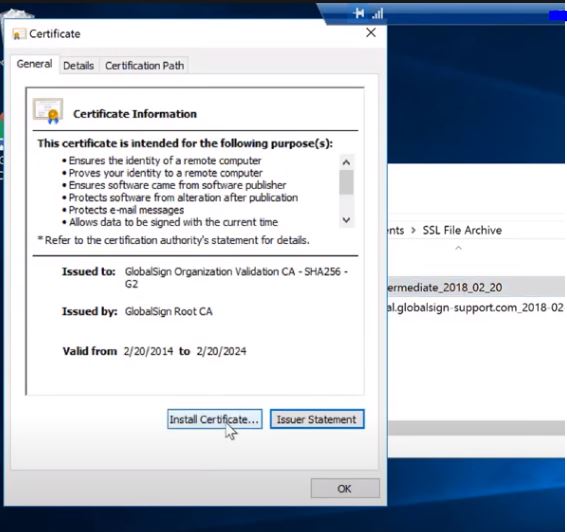
- Go to the directory where you saved the file and double click it.
- Click Install Certificate.
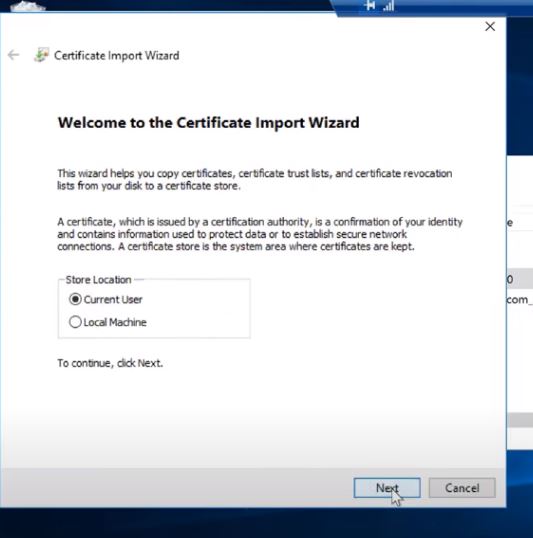
- Choose Current User and click Next.
- Keep the default “Automatically select the certificate store based….” and click Next.
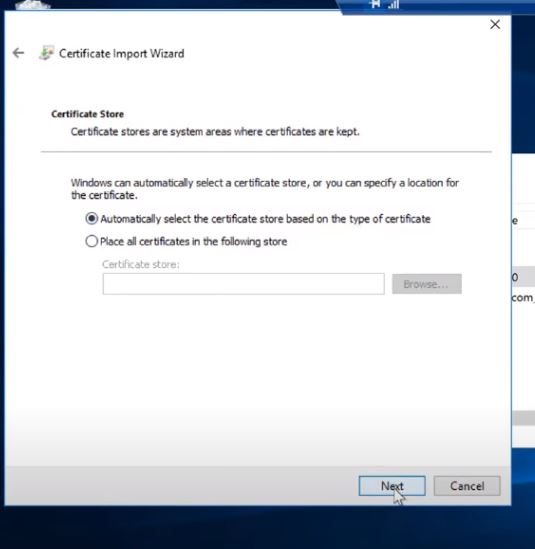
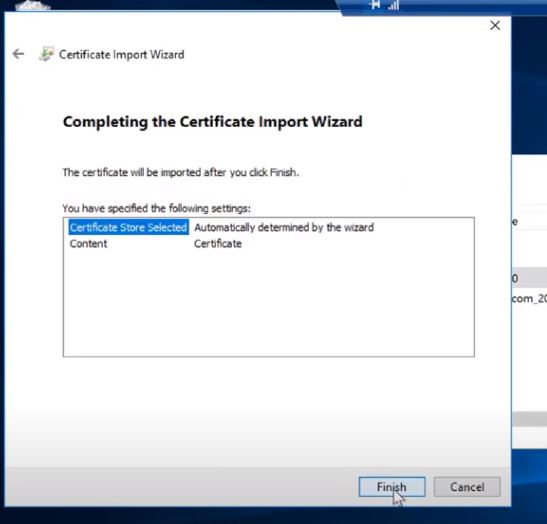
- Click Finish.
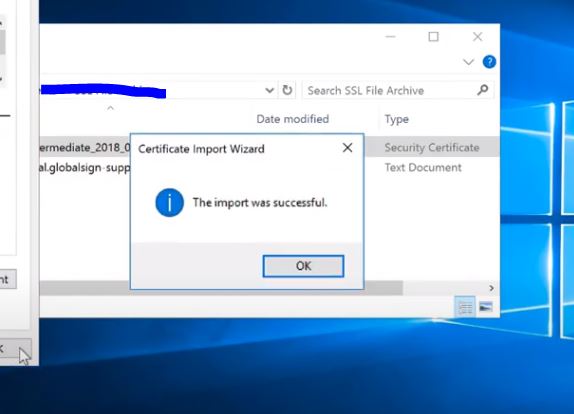
- The import was successful message and click OK.
.
If you like to check the certificate if it’s installed successfully:
- Open MMC.
- Click File.
- Click Add/Remove Snap-in.
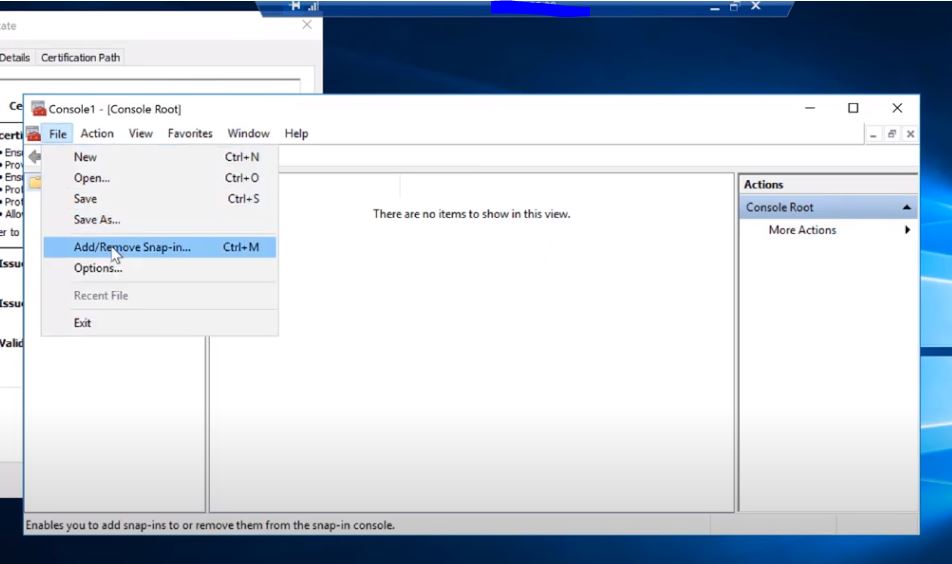
- Choose Certificates then click Add.
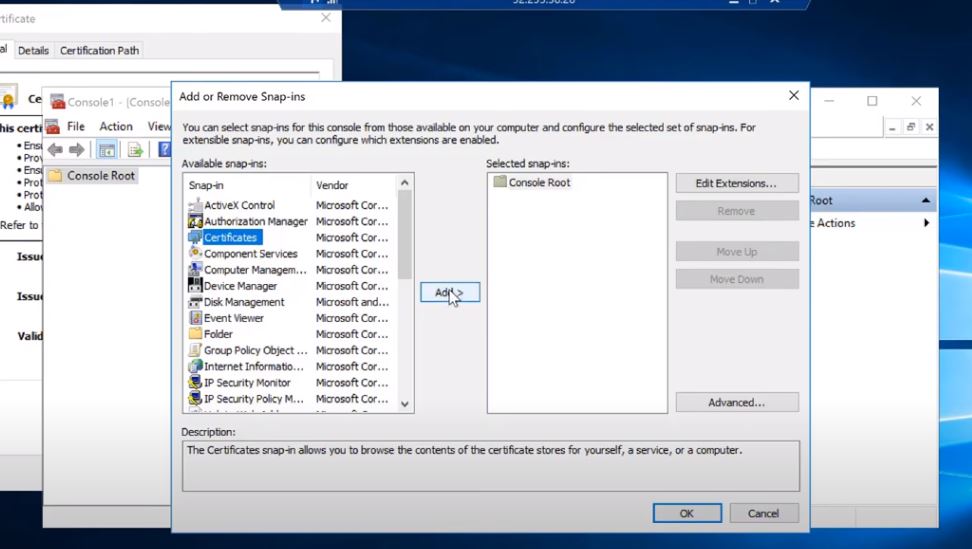
- Choose My user account and click Finish.
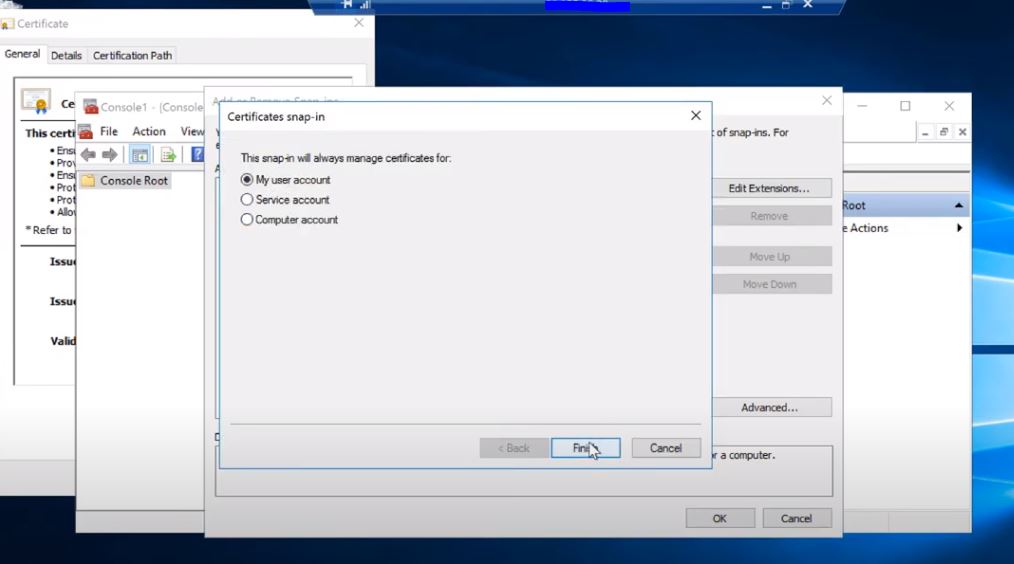
- Click OK.
- Expand the tab and go to Intermediate Certification Authorities.
- Go to Certificates folder.
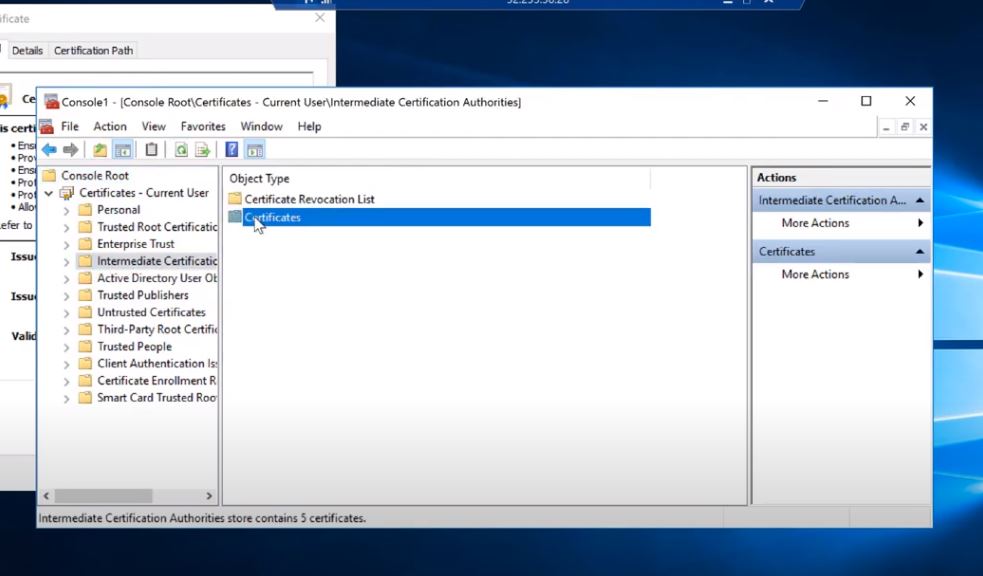
- You should see there the GlobalSign intermediate certificate you imported.
Related Articles
SSL Configuration Test
Check your certificate installation for SSL issues and vulnerabilities.
Contact Support
If you are an Atlas portal user, please submit request to support-atlas@globalsign.com.