
Secure E-Mail - FDA ESG (Legacy)
Jun 4, 2026
Secure E-Mail - FDA ESG (Legacy)
IMPORTANT NOTICE: If you are using a legacy FDA ESG Portal, the content of this page applies. However, if you have transitioned to the ESG NextGen Portal, please contact the FDA ESG Help Desk to confirm certificate requirements for your account. Then, please follow the instructions from ESG NextGen AS2 Account Set-Up Steps to continue.
According to the latest update, submissions via Unified Submission Portal (USP) or API no longer require certificates, but if you are using an AS2 Gateway connection, you must still use digital certificates. To learn more about ESG NextGen, please refer to this FDA documentation.
Prerequisites
Before you can send and receive secure e-mails with the FDA you must have already:
- Purchased a PersonalSign Certificate
- Downloaded and Installed PersonalSign Certificate
- Configured your e-mail client to use your PersonalSign Certificate
Setup
The FDA uses self-signed Certificates so the process for this is slightly different than standard S/MIME with trusted Certificates.
-
Compose a new e-mail in Outlook.
-
The e-mail should be sent to SecureEmail@fda.hhs.gov.
-
Put the e-mail address of your FDA point of contact in the subject line.
-
Click on the Options tab in Outlook and click Sign.
-
You can leave the body of the message blank.
- Send the E-Mail.
-
You'll receive an automated reply signed by the e-mail address you put in the subject field. Right click the e-mail address in the From field and click Add to Outlook Contacts.
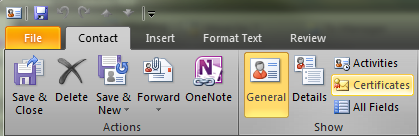
- Click the Certificates button along the ribbon in the contacts window:
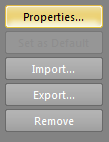
- Click the Properties button along the right hand side of the Certificates window:
-
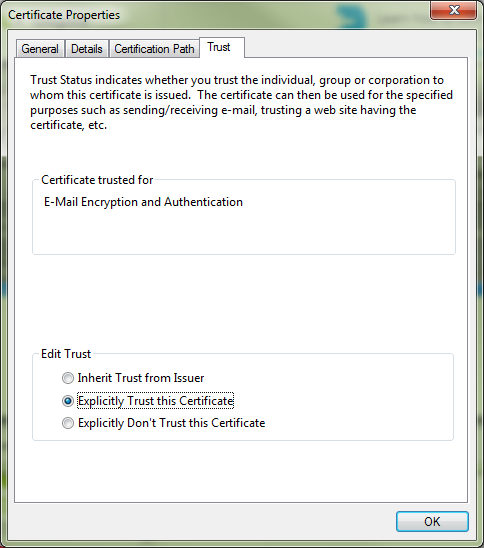
Click on the Trust tab and choose Explicitly Trust this Certificate:
-
Press OK
-
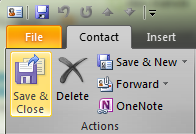
Press Save & Close to update the contact information. Choose Update if the contact already exists.
-
The FDA's certificate has now been saved and explicitly trusted in Outlook. The final step is to send a signed and encrypted e-mail to your FDA contact to show that everything is successfully set up.
Confirmation
-
Reply to the e-mail. This time it should be going to your FDA contact.
-
On the Options tab in Outlook, this time choose both Encrypt and Sign.
-
In the body of the e-mail you can put something to the effect of: "I have saved your certificate and contact details in Outlook. This e-mail should now be encrypted."
-
Press Send.
If everything was set up correctly, the FDA contact should receive and encrypted message from you. If you did not set this up correctly, Outlook will not allow you to send an encrypted message.
Related Articles
SSL Configuration Test
Check your certificate installation for SSL issues and vulnerabilities.