
Domain Verification Process - Email Verification
Mar 30, 2026
Domain Verification Process - Email Verification
|
OVERVIEW: This page walks you through the process of performing domain verification using Email Verification method. At the completion of this procedure, you will be able complete your domain verification for your SSL certificate. For more Domain Verification Method guides, please refer to this page. |
Email Verification
This method is ideal for customers who have access to email for their domain registered contacts or can receive email at a set of predefined domain mailboxes such as admin@example.com and hostmaster@example.com.
This method is applicable to:
- Issuance of DomainSSL (DV) and AlphaSSL certificates
- Adding SANs to CloudSSL certificates
- Adding OV domains to your MSSL account
- Domain self-validation process for Partner and Retail OV and EV SSL Certificates
|
ADVISORY: Effective July 15, 2025, CA/Browser Forum prohibits the use of domain approval email addresses obtained from WHOIS and DNS SOA. Any domains validated via WHOIS or DNS SOA will not be usable after July 14, 2025. To learn more about these changes, please refer to these blogs: DNS SOA, WHOIS. |
How it Works
Customers can input an approver email in DNS TXT records to verify domains for Partner and Retail OV and EV SSL certificates. GlobalSign Certificate Center (GCC) will then obtain and use that address, displaying it on the pages where we list the approver emails for their selection.
Guidelines
-
Upon submission of your order you will be provided with a link to their order-specific Domain Verification Page (DVP) where the domain validations can be performed. Click the link to open the DVP.
You can find the DVP link on the following channels:
• Shown in the order acknowledgement window upon submission of order.
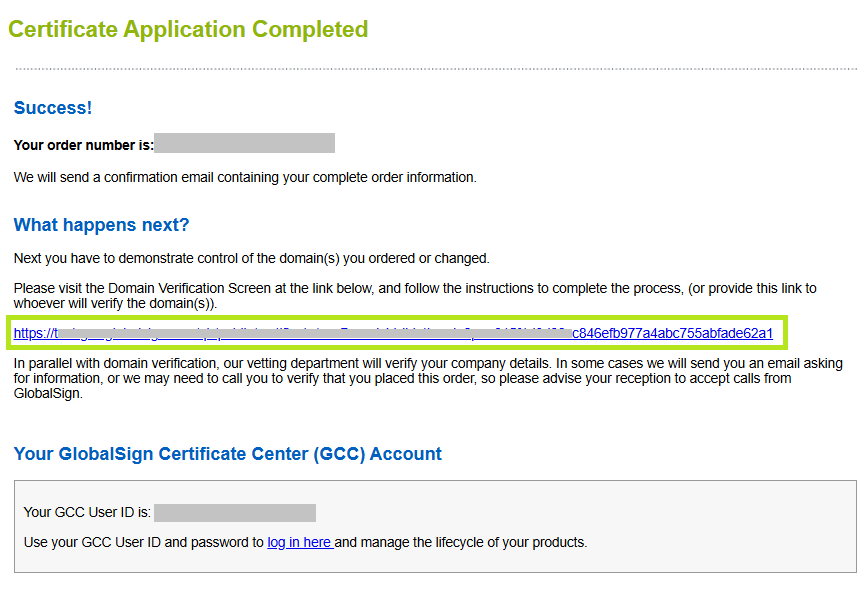
• Sent to your email as part of the order acknowledgement email.
• View it in GCC via Search Order History > Enter Order Number or click Search to view all orders > Click the order number > Scroll to the bottom and click the Domain Verification Page link under SANs Options.

• Available via the GCC SSL APIs.IMPORTANT: If you are still unable to locate the DVP, contact support for assistance and to send you your unique DVP URL. For questions and clarifications about the information presented here, please contact your Account Representative.
-
In the DVP, you can find your order and organization information, as well as the unique Domain Verification Code (DVC) and the list of all SANs in your order. Click the dropdown and select the domain verification method you prefer for your SAN.
INFORMATION: For each SAN in the table, you can select one of the domain validation methods listed. In the event that the domain was recently verified for the same Organization (same Applicant), the domain validation of the prior order will be re-used, and the domain will appear as already approved.
-
Select Email from the Method dropdown, then click Send Email.

-
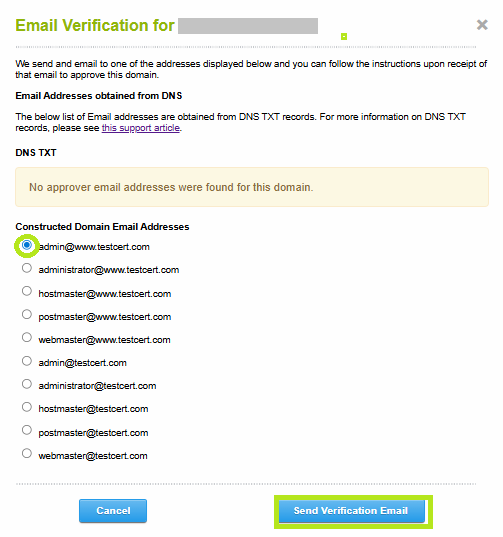
Select the email address you want to use, then click Send Verification Email.
-
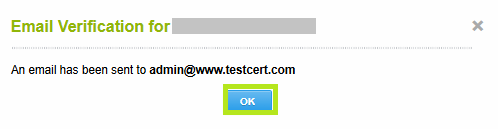
Click OK to confirm. An acknowledgment email will be sent to your selected email address containing the approver page link.
-
Go to your email and review the information, then click the link to continue.
-
Click I Approve to authorize the issuance of the SSL Certificate.
-
Once approved, an email will be sent to you with the details of your certificate and a confirmation that the domain has been verified.
|
WHAT'S NEXT: Once domain verification and vetting is complete, you can now install the certificate upon receipt of email. For certificate installation instructions, please refer to this guide. |
Related Articles
SSL Configuration Test
Check your certificate installation for SSL issues and vulnerabilities.