
Manage Login and Password
May 29, 2026
Manage Login and Password
OVERVIEW: This page provides step-by-step instructions on how to manage your log in and password. After completing these steps, you can use these to log in to the GlobalSign Certificate Center (GCC), reset your GCC password, and troubleshoot basic login issues. For more information about account and finance management, refer to this page.
Guidelines
If you are a first-time GlobalSign customer, you can place your certificate order through the GlobalSign website directly. You will be prompted to create a GlobalSign Certificate Center (GCC) account during checkout. After your account is approved, use the steps provided below to log in to the GCC portal.
-
Go to the GlobalSign website, then click on GCC Login.
NOTE: It is recommended that you bookmark the login page future use.
-
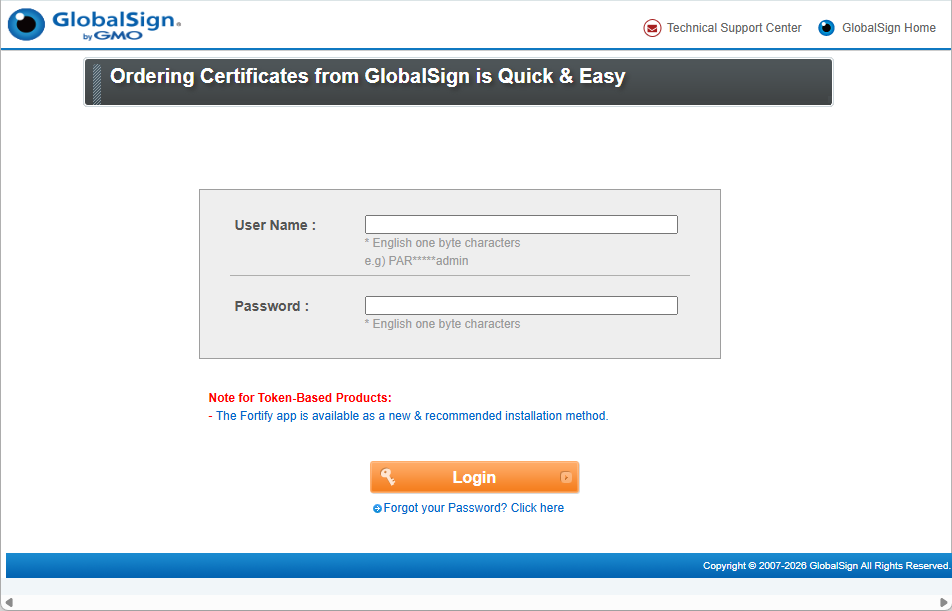
Enter your GCC Log in credentials, then click Login to continue.
FIELD
DESCRIPTION
User Name
The Username is provided at the end of account setup and can be found in your GCC Welcome Email. It follows the PARXXXX_xxxxx format, starting with "PAR," followed by a series of numbers and your nominated user ID.
Password
This is the password you nominated in the GCC account creation.
WARNING: Your account will be locked after 6 incorrect password attempts. If you forget your password, refer to the GCC Password Reset guidelines to reset it.
-
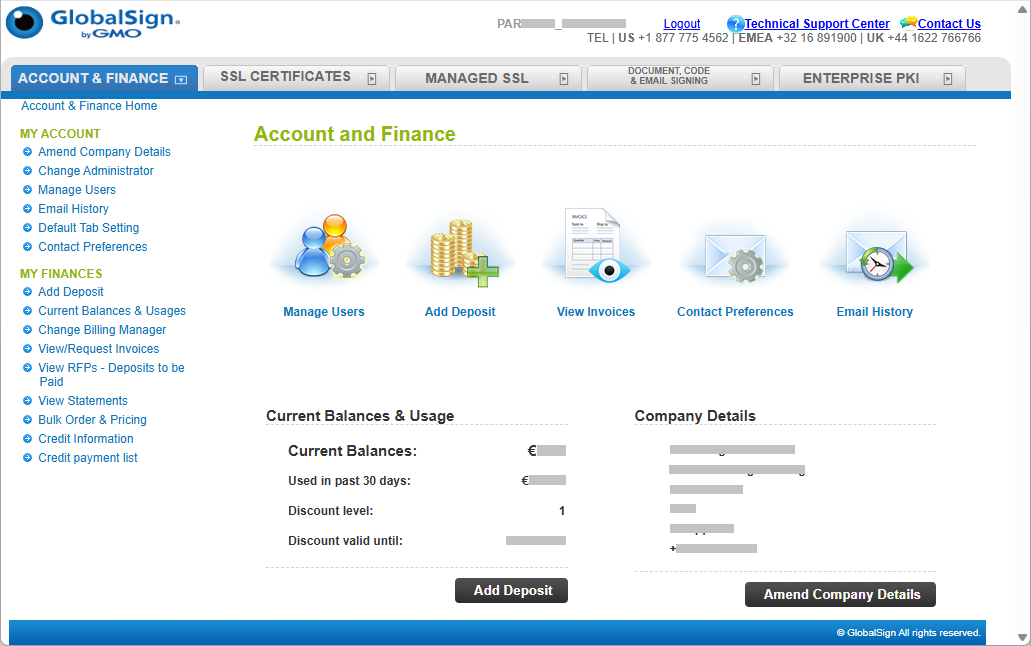
Upon successful login, you will be automatically redirected to your GCC Account dashboard.

You would need to reset your password if you forgot it, locked your account, or cannot log in for security reasons. Resetting your password ensures safe and secure access to your account.
IMPORTANT: If you receive an email stating your account is locked or temporarily suspended, contact GlobalSign Support for assistance.
-
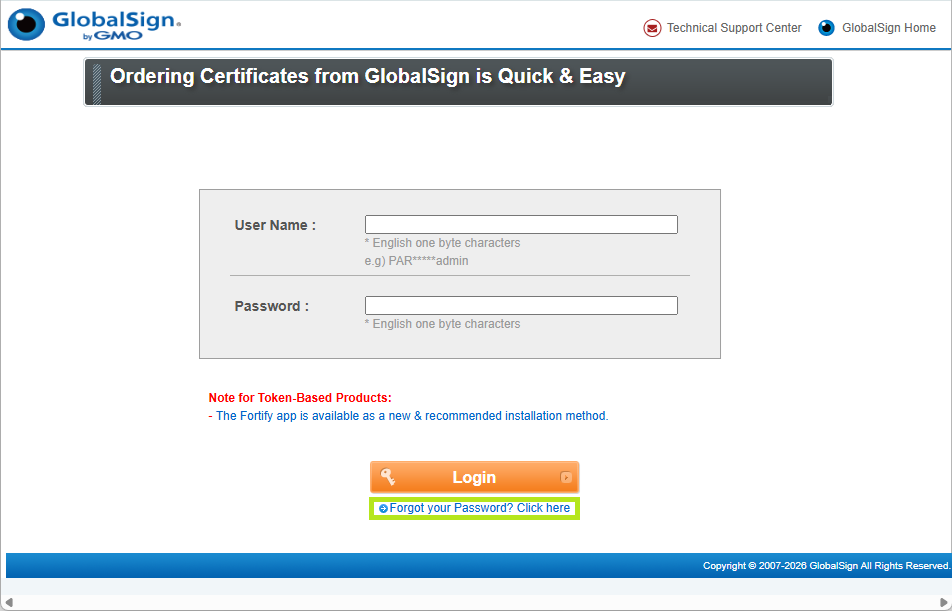
In the the GlobalSign website, then click on Forgot your Password? Click here link.
-
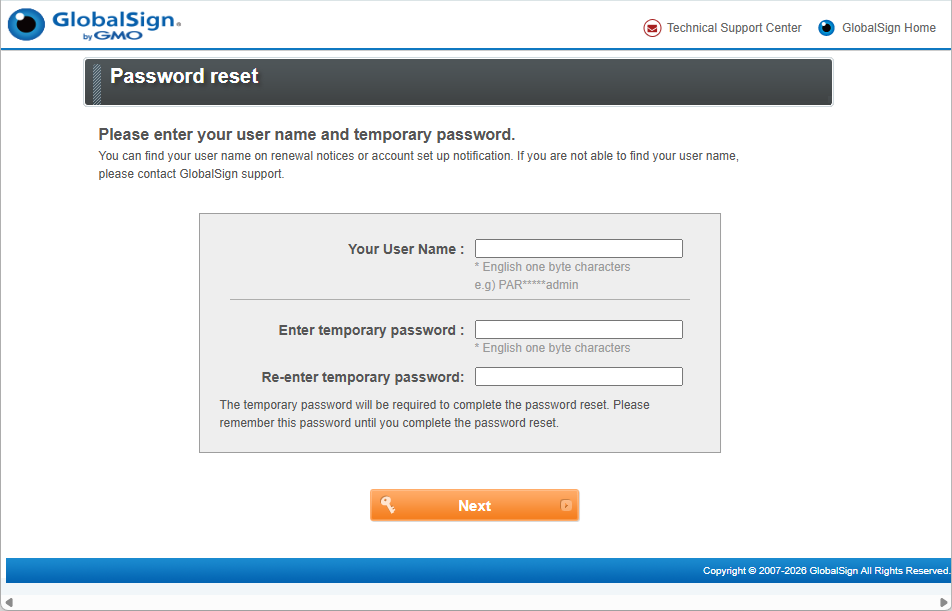
Enter requested details in the space provided, then click Next to continue.
FIELD
DESCRIPTION
Your User Name
The Username is in the PARXXXX_xxxxx format, starting with "PAR," followed by a series of numbers and your nominated user ID. This can be found in your GCC Welcome Email.
Enter temporary password
Enter a temporary password.
- Must contain at least 8 alphanumeric characters.
- Must NOT contain any special characters.
See Password Specifications and Requirements for reference.
Re-enter temporary password
Re-enter your nominated temporary password.
IMPORTANT: Remember your nominated Temporary Password. This will be used later to grant you limited access to your GCC Account so you can securely log in and create a Permanent Password within GCC.
-
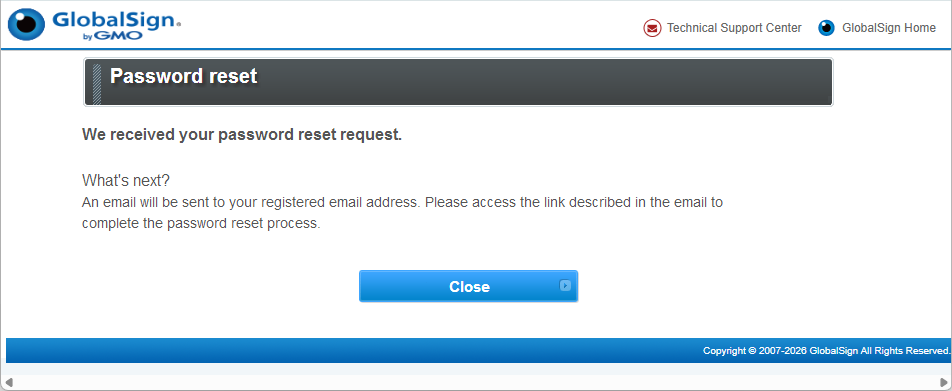
An email is sent to your registered email address. Click Close to exit.
-
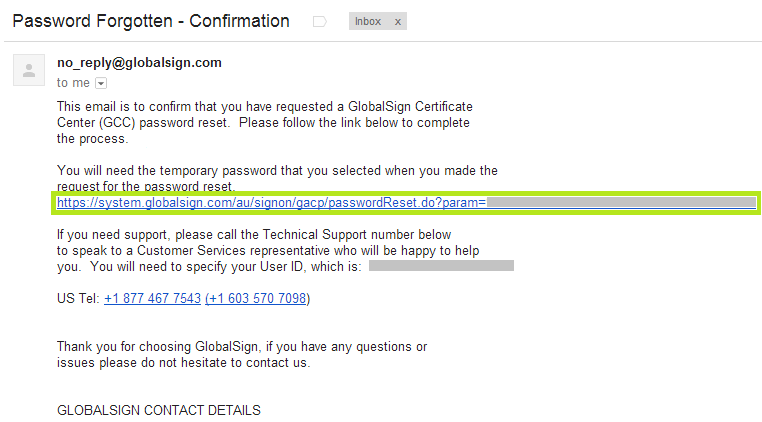
Access your registered email address and search for the subject: Password Forgotten - Confirmation.
-
Open the email and click the password reset link.
-
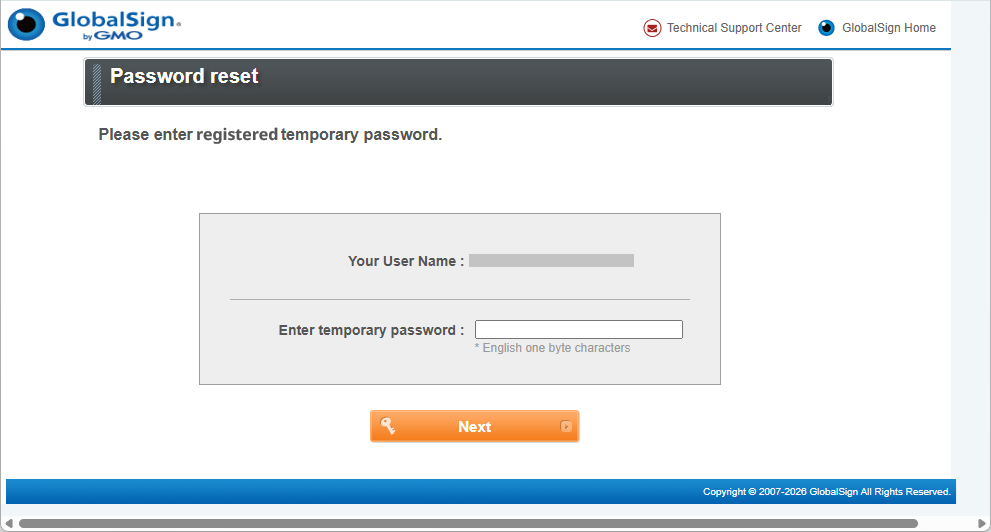
Enter your nominated password, then click Next.
-
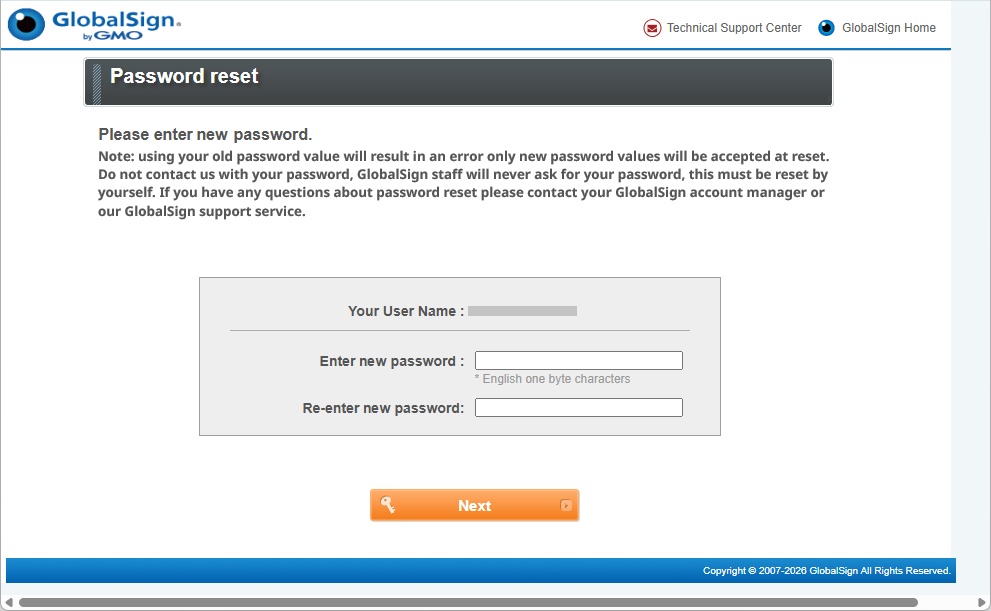
Enter your and confirm your new password., then click Next to confirm.
NOTE: Enter a new password consisting of a minimum of 8 alphanumeric characters and must NOT contain any special characters.
See Password Specifications and Requirements for reference.
-
Test your new password through the GCC Login page.
Related Articles
SSL Configuration Test
Check your certificate installation for SSL issues and vulnerabilities.