
Install Code Signing Certificate Using Microsoft Edge in IE Compatibility Mode
Mar 23, 2026
Install Code Signing Certificate Using Microsoft Edge in IE Compatibility Mode
|
OVERVIEW: This page walks you through the process of downloading and installing you GlobalSign Code Signing Certificates using Microsoft Edge in IE Compatibility Mode as the key generation method. At the completion of this procedure, your Certificate will be ready to place signatures on drivers, executables, and other files. |
|
IMPORTANT: This guide is for installing Certificate using Microsoft Edge in IE Compatibility Mode. If you selected the Enrollment with Fortify as key generation method during ordering (Step #4), proceed with install your certificate using Fortify. Otherwise, you need to cancel your current order and reorder to change your selection. |
Prerequisites
Before you proceed, make sure you have completed the following:
-
Approved and vetted GlobalSign Code Signing Certificate.
-
GlobalSign-provided SafeNet eToken. Depending on your need, do the following actions:
For New Orders
• Download and install SafeNet Authentication Client drivers.
• Initialize SafeNet eToken. This is a requirement when setting up the SafeNet eToken for the first time.
For Renewals/Reissues
• You may still use your existing SafeNet eTokens as long as it's still compatible and it meets the required supported key size. For Code Signing Certificates, token is the Safenet eToken 5110+ CC (940) and up.IMPORTANT: If the supported key size of your current token is not compatible or does not meet the required key size, request for a new token during the renewal process. If your eToken is still compatible and you do not want to make any changes with your current token password, initializing your eToken is not required. You may proceed with the guidelines.
Certificate Pickup Requirements
-
For Certificate pickup, you must have access to a Windows PC to proceed. Once the Certificate is installed and stored in the removable device, you may sign from other platforms such as OS X.
-
You are required to open the pickup link in Microsoft Edge with IE Compatibility Mode enabled, then continue with the guidelines.
- Standard Code Signing Certificate is now issued of R45 Intermediate Certificate and you may need to include the R3-R45 Cross Certificate.
Guidelines
-
Open the Certificate Download Ready email and launch the pickup link using Microsoft Edge with IE Compatibility enabled.
-
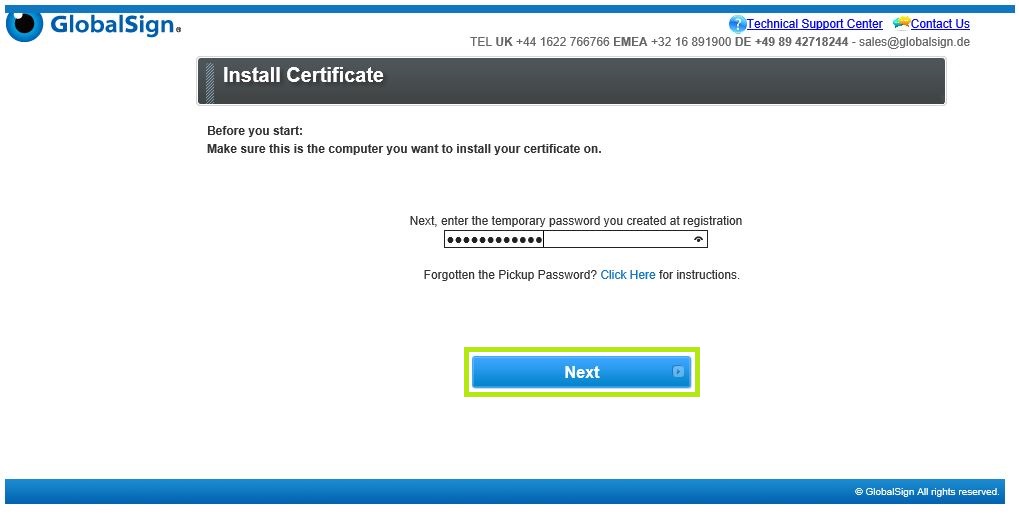
Enter the Temporary Pickup Password that was set at the time of ordering and click Next to continue.
-
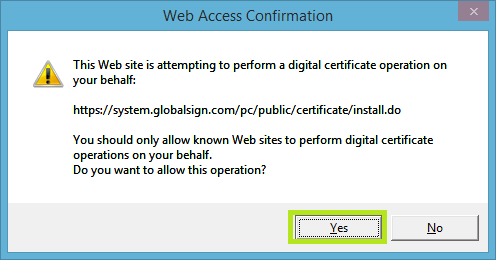
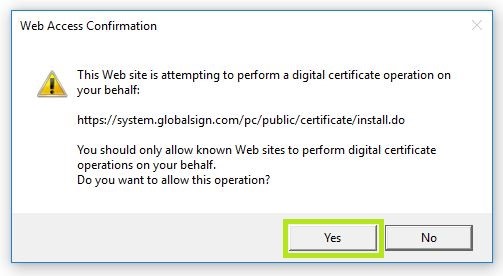
In the Web Access Confirmation prompt, click Yes to allow digital certificate operations.
-
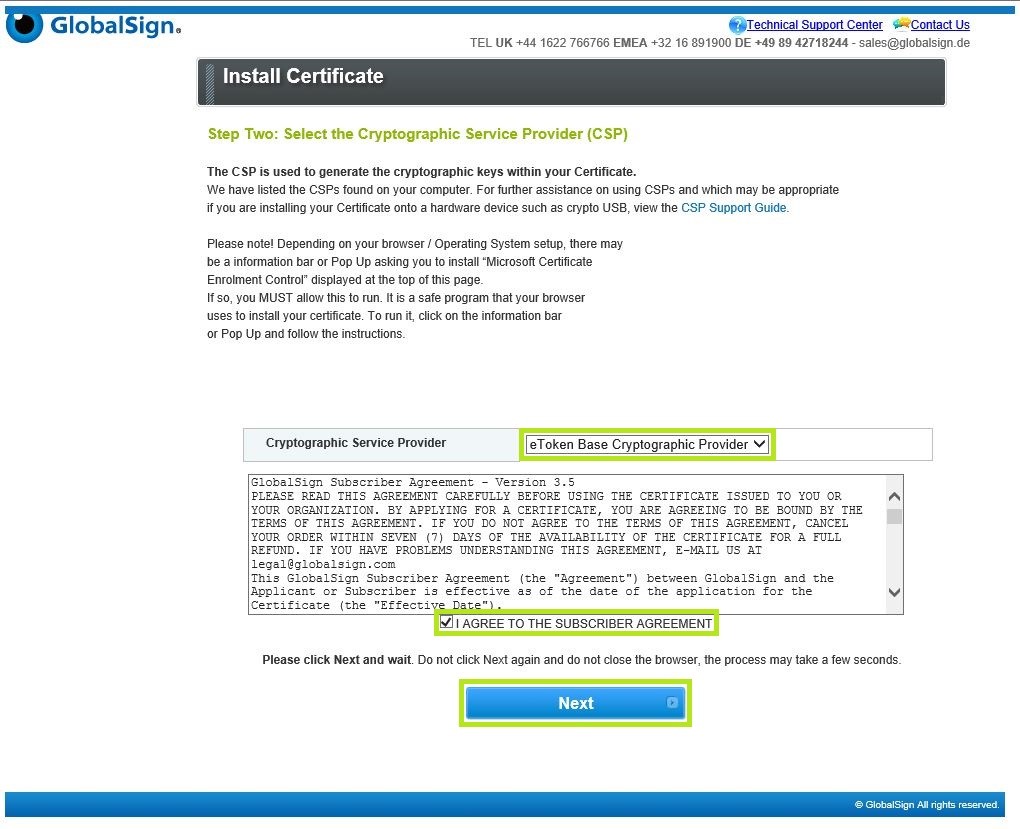
In the Install Certificate window, choose one from the Cryptographic Service Provider drop-down options:
• If you want to install the GlobalSign-provider SafeNet eToken, select eToken Base Cryptographic Provider
• If you want to install a private-owned smart card, select Microsoft Base Smart Card Crypto Provider
Then, tick the box to agree to the subscriber agreement and click Next.IMPORTANT: For renewals, if you encounter a storage-related error, such as "Token Full" error message, you must remove any expired certificates and/or orphaned objects from the token. Once these items are cleared, you will be able to successfully import and use a new certificate.
-
Insert your SafeNet USB token into your computer.
-
Enter the password for your USB token. This was set during the initialization process, then click OK.
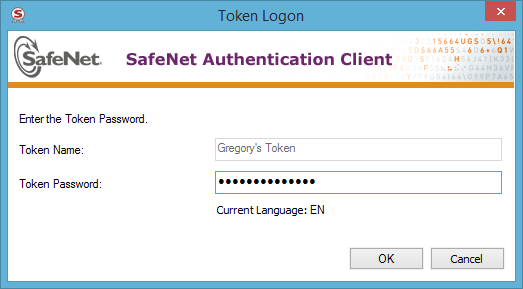
WARNING: The screen may appear to freeze for a minute or two. DO NOT press any button on your browser until the process is complete as it will interrupt the progress. There should be a blinking light from your eToken and a message in the screen reminding to wait for a while.
- Once the token has finished the keypair generation, click the button to Install My Certificate.
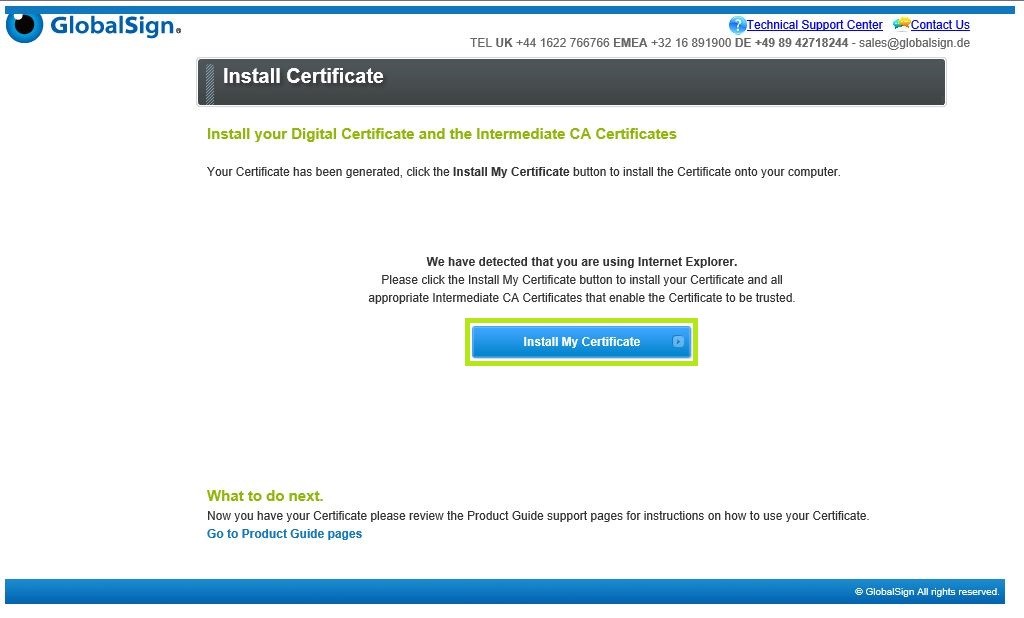
- In the Web Access Confirmation prompt, click Yes to allow digital certificate operations.
- Click OK to complete the process.
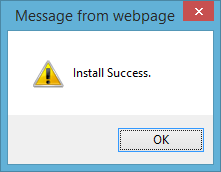
- You are now ready to use your certificate.
|
WHAT'S NEXT: Now that you have successfully installed your Code Signing Certificate, you may now sign codes using it. For instructions on how to sign codes using your GlobalSign Code Signing Certificate, please refer to this page. |
Related Articles
SSL Configuration Test
Check your certificate installation for SSL issues and vulnerabilities.