
SafeNet Drivers
Jun 8, 2026
OVERVIEW: This page provides all versions of the SafeNet Authentication Client to link your device to the eToken. For more SafeNet management guides, please refer to this page. Can't find what you're looking for? Get in touch for assistance.
Download SafeNet Authentication Client
-
Select the version of the SafeNet Authentication Client required from the tabs below and click on the appropriate link. It will automatically download the client.
-
Open the folder to view the downloaded file and launch the installation file.
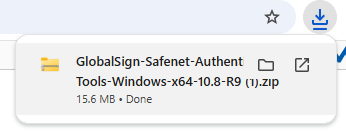
-
Click the SafeNet Authentication Client installation file, then follow the prompt to proceed with the installation.
SafeNet Authentication Client
The most recent version of the SafeNet Authentication Client is now available and can be downloaded directly from the tabs below:
Troubleshooting
If you are experiencing any of the below issues with the SafeNet Driver, the token is:
- not being recognized.
- not present in Adobe.
Follow these workaround to proceed:
- Within your Adobe Acrobat Pro DC application.
- Navigate to Preferences > Signatures > Identities & Trusted Certificates > More...
- Select Digital IDs / PKCS#11 Modules and Tokens > Click Attach Module > Specify the patch of your PKCS#11 file ( /usr/local/lib/libetpkcs11.dylib )
- You will now see that your token is visible, as Adobe will be able to recognize this.
If you need any assistance with this workaround, please reach out to our Support Team.
WHAT'S NEXT: You can now initialize your SafeNet eToken to proceed. To initialize your eToken, please refer to this guide.
Related Articles
SSL Configuration Test
Check your certificate installation for SSL issues and vulnerabilities.