
Order Common Mark Certificate
Apr 10, 2026
Order Common Mark Certificate
|
OVERVIEW: This page walks you through the process of ordering a new GlobalSign's Common Mark Certificate (CMC). CMC serves a similar function to a VMC but is intended for entities that do not own registered trademarks. It validates the organization’s identity while allowing the use of a verified, unregistered logo under BIMI standards. At the completion of this procedure, you will be able to place an order for your CMC. For more certificate management guides, please refer to this page. |
Logo Eligibility
To know if your logo is eligible for this Certificate, please ensure the following:
- Your logo must have been in use for at least 12 months.
- The exact logo must appear on your current website.
Technical Prerequisites
Before placing an order, you will need to complete the following actions:
-
DMARC Policy. Ensure it is set to "quarantine" at 100% or "reject" to comply.
Please note that you need to apply the DMARC policy 30 days in advance. -
SPF and DKIM Records. Make sure these are configured correctly for your domain to enhance email authentication.
To set up DKIM, SPF and DMARC, please refer to this guide. -
BIMI Guidelines Compliance. Format your logo according to the BIMI (Brand Indicators for Message Identification) standards.
To convert your logo to according to BIMI standards, please refer to this guide.
Guidelines
|
INFORMATION: If you are a first time GlobalSign customer, you can place through our website. During the ordering process, we will ask you to create your GlobalSign Certificate Center (GCC) account to manage your certificates in the future. If you are an existing customer and you have previously created a GCC account, proceed with the guidelines below. |
-
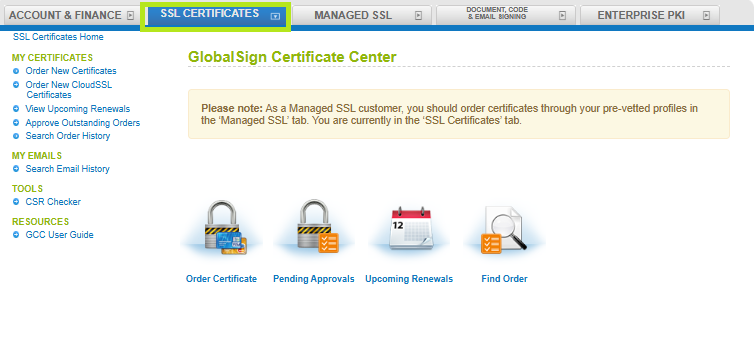
Log in to your GCC account and go to SSL Certificates.
-
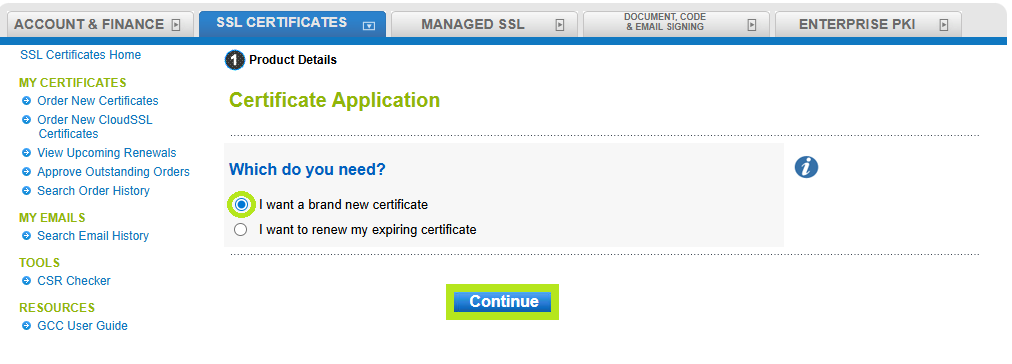
In the next window, select I want a brand new certificate, then click Continue.
-
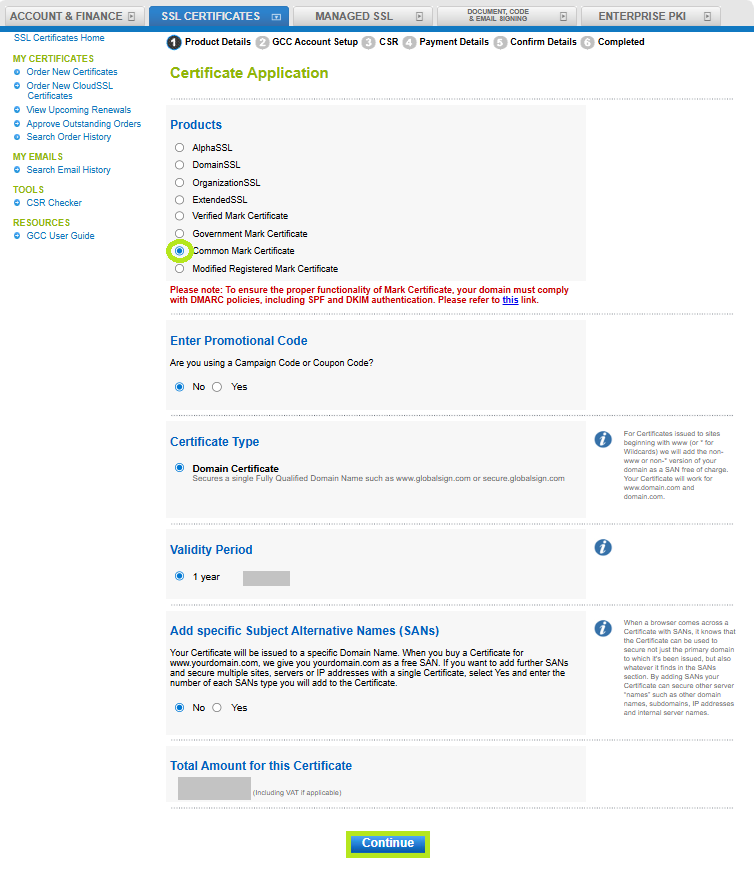
In the Certificate application window, select Common Mark Certificate under Product, then choose your preferred Certificate Type, Validity Period, and optionally add SANs. If you have a promotional code, enter it in the designated field, then review the total amount displayed at the bottom of the page, and click Continue to proceed. Note: In the Add specific Subject Alternative Names (SANs) section, choose Yes if you need to add multiple domains to your CMC Order. If left as No, by default you will be asked to add one domain only that can be your primary domain.
-
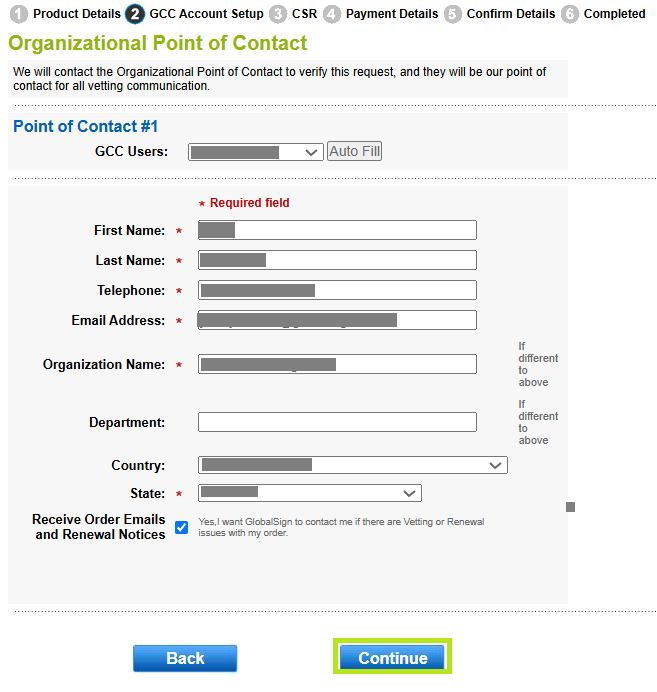
In Point of Contact #1, enter your contact details to be used for any further communication. Then, click Continue.
-
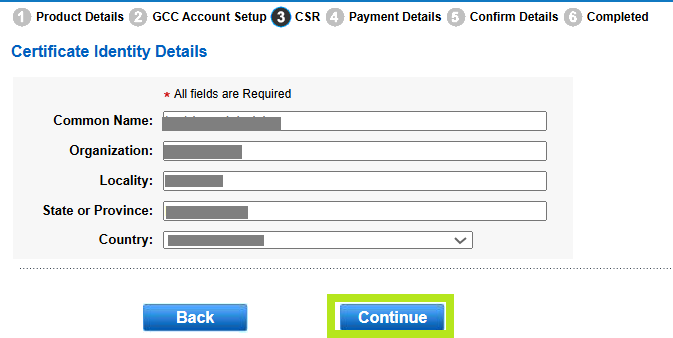
In the Certificate Identity Details, enter your Common Name/SAN, such as example.com. This will be your main domain for which the certificate is issued. Then, click on Continue.
-
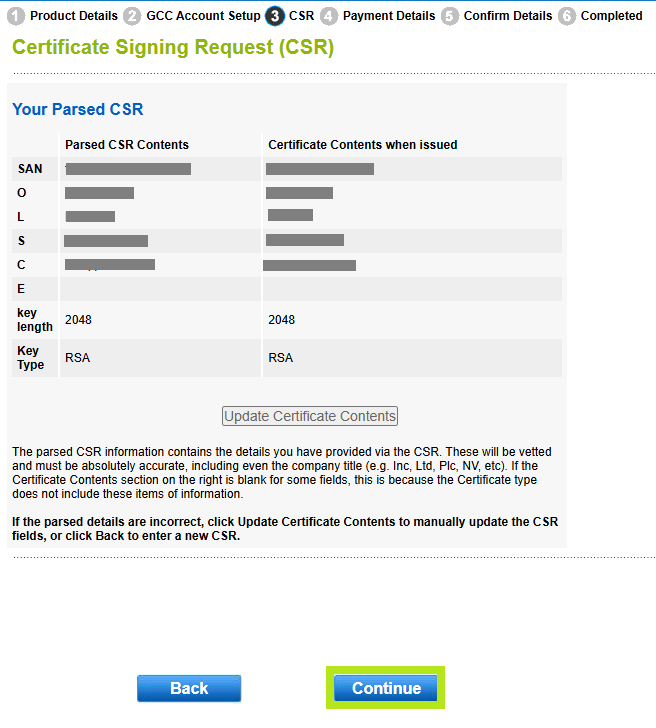
Review all the information you have provided and click Continue.
-
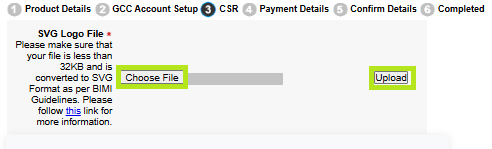
In the next screen, choose your file and upload your logo. Note: Make sure to click Upload after choosing the file.
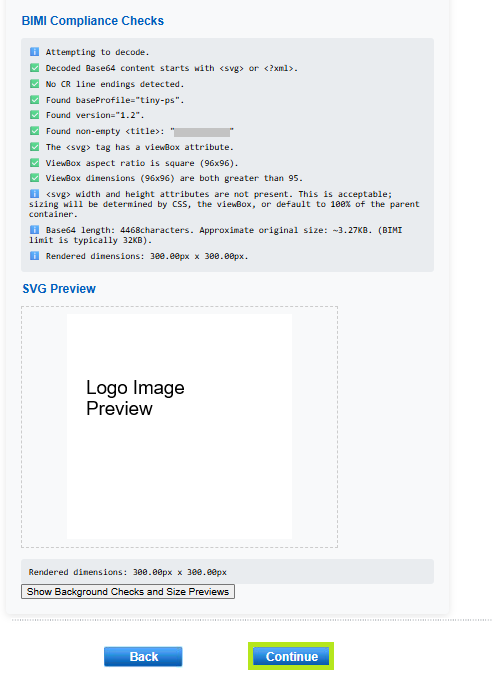
The BIMI Compliance Checks and the svg logo image preview will populate. Then, click Continue.
-
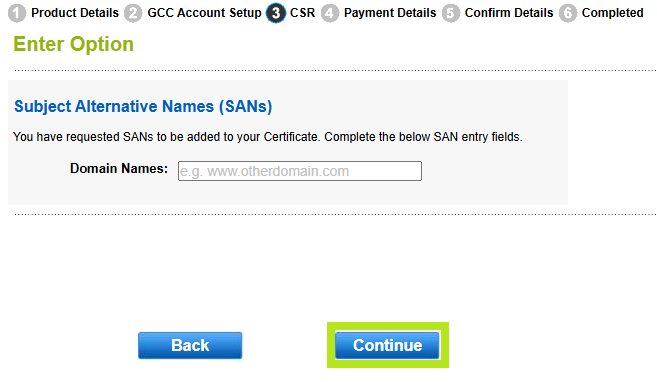
In the Enter Option window, if you selected Yes in Step #3 for adding specific Subject Alternative Name (SAN), then you will be asked to enter the extra domain/s that you want to use Mark Certificate for. Enter your additional SAN and click Continue. If you selected No, please continue to Step # 9.
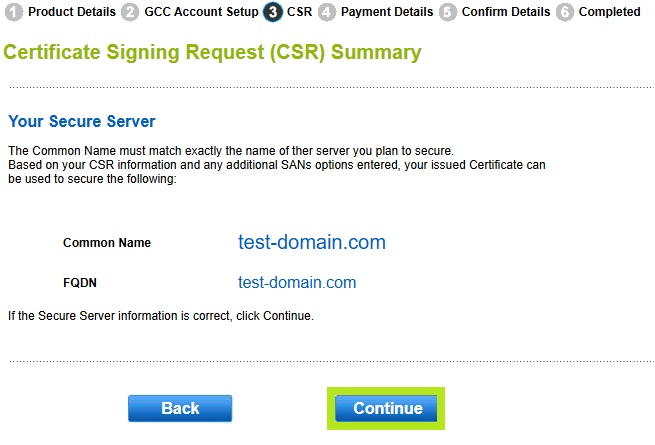
In the Your Secure Server window, you can view the summary of the FQDN requested for your CMC. Once confirmed, click Continue
-
In the Mark Specific Details Requirements window, there are some important items of information that we require for the creation of your CMC (see description below).
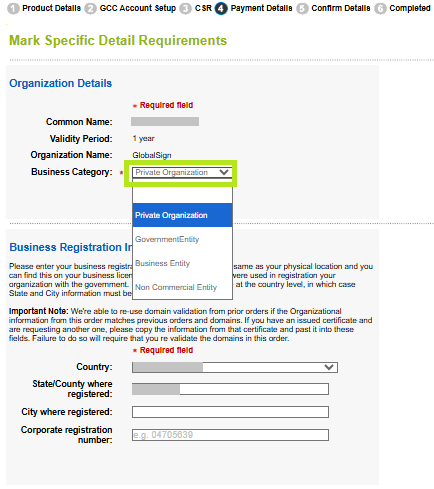
The first request is to confirm your Business Category. Please select one option.Field
Value to choose as per your knowledge
Business Category
Private Organization:
A non-governmental legal entity (whether ownership interests are privately held or publicly traded) whose existence was created by a filing with (or an act of) the Incorporating Agency or equivalent in its Jurisdiction of Incorporation.
Business Entity:
Any entity that is not a Private Organization, Government Entity, or Non-Commercial Entity as defined herein. Examples include, but are not limited to, general partnerships, unincorporated associations, sole proprietorships, etc.
Non-Commercial Entity:
An Applicant qualifies as a Non-Commercial Entity if:
1. The Applicant is an International Organization Entity, created under a charter, treaty, convention or equivalent instrument that was signed by, or on behalf of, more than one country’s government. The CA/Browser Forum may publish a listing of Applicants who qualify as an International Organization for Mark eligibility;
2. The Applicant is not headquartered in
any country where the CA is prohibited from doing business or issuing a certificate by the laws of the CA’s jurisdiction; and
3. The Applicant is not listed on any
government denial list or prohibited list (e.g., trade embargo) under the laws of the CA’s jurisdiction.
Government Entity:
A government-operated legal entity, agency, department, ministry, branch, or similar element of the government of a country, or political subdivision within such country (such as a state, province, city, county, etc.).
In the same window, you will also have to enter the Incorporation agency registration number / Corporate registration number.
Note: If you are not sure which registration to use, then you can also leave this blank, and our vetting team will attempt to locate this for you.

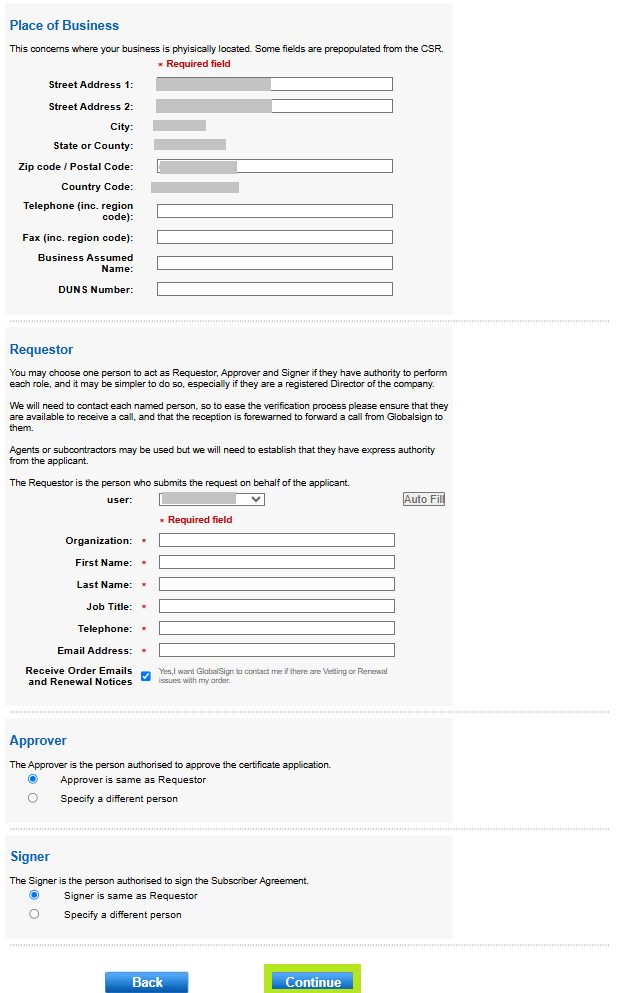
Fill out the rest of the required fields, then click Continue.
-
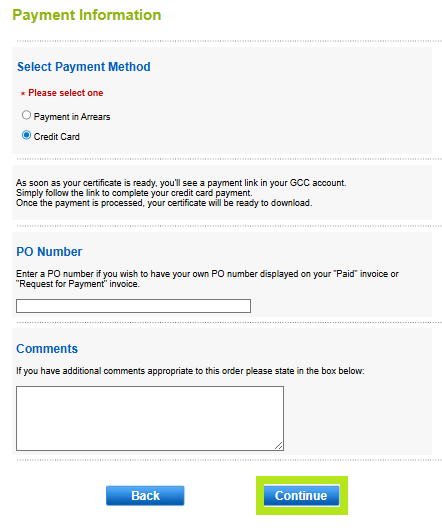
In the Payment Information window, select your preferred payment method and click Continue.
IMPORTANT: For credit card payments, you will receive an email with a link to process your payment before your certificate is issued. This payment link is available in the GCC portal. For instructions on how to process payment for your certificate, please refer to this guide.
-
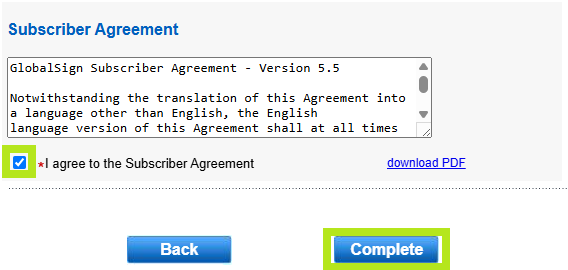
Review all the information you provided in Confirm Details/Summary window and tick the Subscriber Agreement box. Then, click Complete.
-
You have now successfully placed an order.
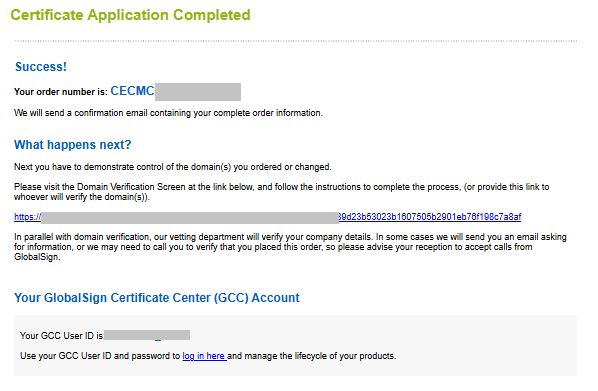
IMPORTANT: If you need to update or change your logo after placing an order, please contact support to help reach out to vetting while the logo verification is in progress. Once the logo has been verified, changes are no longer possible. In that case, you’ll need to cancel your current order and place a new order with the updated logo. Our vetting team will get in touch with you, as and when needed. Once your domains are verified, and your organization and logo details have been verified from our end, we will email with your Mark Certificate PEM file.
|
WHAT'S NEXT: Once vetting is completed and payment is processed, your certificate will be ready to download and install. For certificate installation instructions, please refer to this guide. If you have questions or clarifications, contact support for assistance. |
Related Articles
SSL Configuration Test
Check your certificate installation for SSL issues and vulnerabilities.