
Download and Install PersonalSign Certificates
Jun 22, 2026
Download and Install PersonalSign Certificates
OVERVIEW: This page walks you through the process of downloading and installing your GlobalSign PersonalSign Certificate. At the completion of this procedure, your certificate will be ready to be configured on your desired platform, email client, etc. For PersonalSign 3 and other installation options, please refer to this page↗.
Prerequisites
-
Fully approved GlobalSign PersonalSign Certificate. To approve your application, please refer to this page↗.
-
Temporary password refers to the Pickup Password created during the order process which will be used to download the certificate. If you forgot or lost this password, you will have to cancel and reorder your certificate↗.
-
If you selected Download using Internet Explorer (IE) Compatibility Mode as your Key Generation Option during ordering process, you must open the pickup link from your e-mail in Microsoft Edge with IE Compatibility Mode enabled↗.
Download Guidelines
Select the appropriate tab to view download instructions.
If you selected Download using Internet Explorer (IE) Compatibility Mode as your Key Generation Option during ordering process, use this guidelines.
-
Open the system-generated download email and review your order.
NOTE: The subject line for this email is also the order number.WARNING: Make sure you are using the computer where you intend to install your certificate. Otherwise, an error will occur. For certificate pickup, you must have access to a Windows PC to proceed. Once the Certificate is installed and stored in the removable device, you may sign from other platforms such as OS X.
-
Copy the Certificate Generation and Installation link and paste it to your browser.
NOTE: If you selected Download using Internet Explorer (IE) Compatibility Mode as your Key Generation Option during ordering process, you must open the pickup link from your e-mail in Microsoft Edge with IE Compatibility Mode enabled↗. -
Enter the Pickup Password that was set during the ordering process and click Next.

-
Web Access Confirmation pop-up will appear. Click Yes to continue.
-
Tick the box if you wish to make your Certificate exportable and select Microsoft Enhanced Cyrptographic Provider v1.0 as your Cyrptographic Service Provider. Then, tick the subscriber agreement box and click Next.
-
Click Install My Certificate to proceed with installation.
INFORMATION: You will receive an email confirmation that your certificate has been issued. This email also contains a link to use in case the session of the current download page has expired or the installation fails. Open the link to display the download page again.
-
Proceed to the Install Guidelines below.
If you selected Download as .pfx (PKCS12) as your Key Generation Option during ordering process, use this guidelines.
-
Open the system-generated download email and review your order.
NOTE: The subject line for this email is also the order number.WARNING: Make sure you are using the computer where you intend to install your certificate. Otherwise, an error will occur. For certificate pickup, you must have access to a Windows PC to proceed. Once the Certificate is installed and stored in the removable device, you may sign from other platforms such as OS X.
-
Copy the Certificate Generation and Installation link and paste it to your browser.
-
Enter the Pickup Password that was set during the ordering process and click Next.
-
In this window, a Certificate Password (19-digits alphanumeric password) will be auto-generated for you. Copy the password and paste it in a safe location, then tick the I Agree to the subscriber agreement box and click Next.
IMPORTANT: If you forgot or lost the certificate password, you can click the back arrow of the browser you used to open the delivery link to return to the previous page, then copy the password again. However, if the browser has been closed or the link is already expired, you will have to cancel and reorder your certificate.
-
Click Download My Certificate to download your certificate file.
INFORMATION: You will receive an email confirmation that your certificate has been issued. This email also contains a link to use in case the session of the current download page has expired or the installation fails. Open the link to display the download page again.
-
Open the file in the location where it was downloaded. Then, proceed to the Install Guidelines below.
Install Guidelines
-
In the Certificate Import Wizard, select your preferred Store Location. Then, click Next.
-
Select the location and click Next.
-
This step is only for Download as .pfx (PKCS12) as Key Generation Option. For Internet Explorer (IE) Compatibility mode option, continue to Step #4.
Enter the auto-generated Certificate Password created when downloading the certificate. Then, tick boxes of the following options:
• Mark this key as exportable - this will allow you to export the private key from the certificate.
• Include all extended properties - this will carry over all the certificate details during import.
Click Next to continue. -
Select the first option and let the Certificate Import Wizard determine the best place for the installation. Then, click Next.
NOTE: In some instances, the certificate may not install under Personal. If this is the case, select the second option and manually browse for your preferred when rerunning the installation. -
Review your setting and click Finish.
-
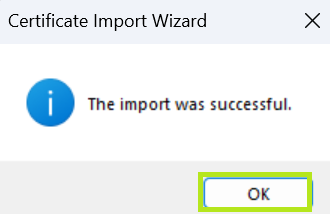
Click OK to complete the process. Your certificate is successfully installed.
You are now ready to use your certificate.
WHAT'S NEXT: Now that you have successfully installed your certificate, you may now configure it on your desired platform, email client. For instructions on how to configure your certificate to your preferred platform, please refer this page↗.
Related Articles
SSL Configuration Test
Check your certificate installation for SSL issues and vulnerabilities.