
Order PersonalSign 3 Pro Certificate
Jun 9, 2026
Order PersonalSign 3 Pro Certificate
OVERVIEW: This page provides step-by-step instructions for ordering a PersonalSign 3 Pro Certificate from the GlobalSign↗ portal. After completing these steps, you can install the certificate and use it to digitally sign and authenticate Belgian government–compliant documents. For more information about PersonalSign Certificates, please refer to this page↗.
IMPORTANT: To use Belgian Online Government Services, you must obtain a Class 3 Digital Certificate, which allows you to securely authenticate and submit information.
IDENTITY VERIFICATION IS PERFORMED IN PERSON (FACE-TO-FACE). For more information, contact your chosen Local Vetting Authority (LVA) to confirm whether they require the identity verification process to be completed in person.
Guidelines
IMPORTANT:
-
You will receive a ⓘSession timeout notification in the Belgian Government Compliant Digital Certificate Application page if you are inactive for a certain time
-
An ⓘInvalid Parameter notification would indicate incomplete or incorrect field entries.
-
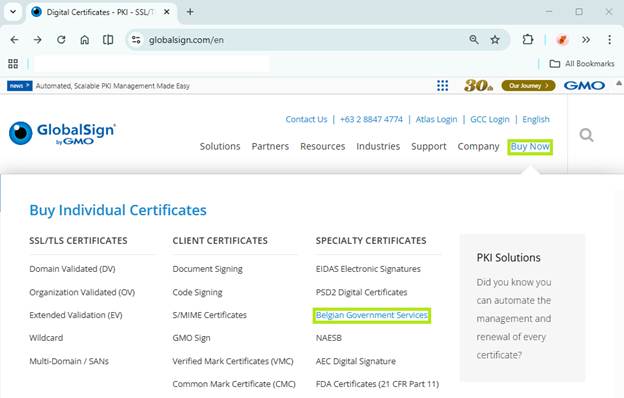
Access the GlobalSign website and hover your mouse curser on the Buy Now link, then click Belgian Government Services.
-
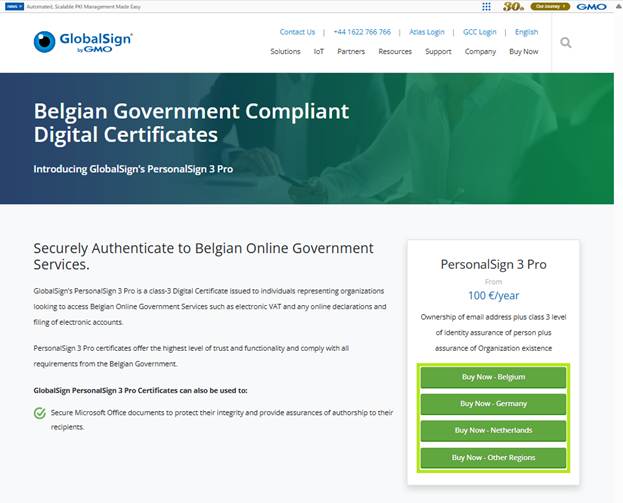
On the right-side panel, select the appropriate country or region button.
NOTE: Select the region you are in and where the LVA can verify your PersonalSign 3 Certificate application (such as in‑person verification and ID checks) and complete the initial vetting.
STEP 1: Ordering a PersonalSign 3 Pro Certificate by Region
IMPORTANT: Once your PersonalSign 3 Pro certificate application is created online, go to the Belgium Chambers of Commerce LVA.
IDENTITY VERIFICATION IS PERFORMED IN PERSON (FACE-TO-FACE). For more information, contact Chamber of Commerce to confirm whether they require the identity verification process to be completed in person.
-
In the Certificate Application page, fill in the Product Details form:
-
Click PersonalSign 3 Pro, then click Next.
-
Key Generation Options: Select the appropriate download option, then click Next to continue to the Certificate Identity Details section.
FIELDS
DESCRIPTIONDownload as .pfx (PKCS12)
Certificate and private key will be available for download using any browser.
NOTE: This is the most recommended option.Download using Internet Explorer (IE) Compatibility Mode
Certificate Signing Request (CSR) is automatically generated using IE Compatibility mode.
-
- Enter your Certificate identity details, then click Next to continue to the Subscriber Details section, otherwise click Back to edit previous entries.
INFORMATION: The Certificate Identity Details will be vetted and included as the Subscriber identity within the issued certificate.
FIELDS
DESCRIPTIONYour Name*
Enter legal name of person in your organization who is going to use the digital certificate. Specify your First Name (required), Middle/Initial (optional) and Last Name (required).
Organization*
Specify the Organization Registered Name in full, including Inc, Ltd, NV, Plc.
Locality
Specify the City or Town in which the Organization is registered at.
State or Province
Specify State or Province in which the Organization is registered at. For US applications you must specify the State in full.
Country*
Specify Country in which the Organization is registered at.
Enter the email address where the verification / approval email and certificate download link will be sent to.
Enter a Pickup password that is at least 8 characters long. Alphanumeric characters only (A–Z, 0–9).
IMPORTANT: For security reasons, please specify a Pickup password that will be required to release your PersonalSign3 digital certificate once it’s been approved. For more information on the Password Specifications and Requirements, refer to this page.
WARNING: You must remember this password in order to download your digital certificate. IT IS A MUST THAT YOU SECURE YOUR PASSWORD! Forgotten Pickup passwords will require that the order be cancelled and resubmitted.
Pickup Password (re-enter)*
Re-enter password to confirm entry.
*Required fields
-
Enter Subscriber details, then click Next to continue to the Confirm Details section, otherwise click Back to edit previous entries.
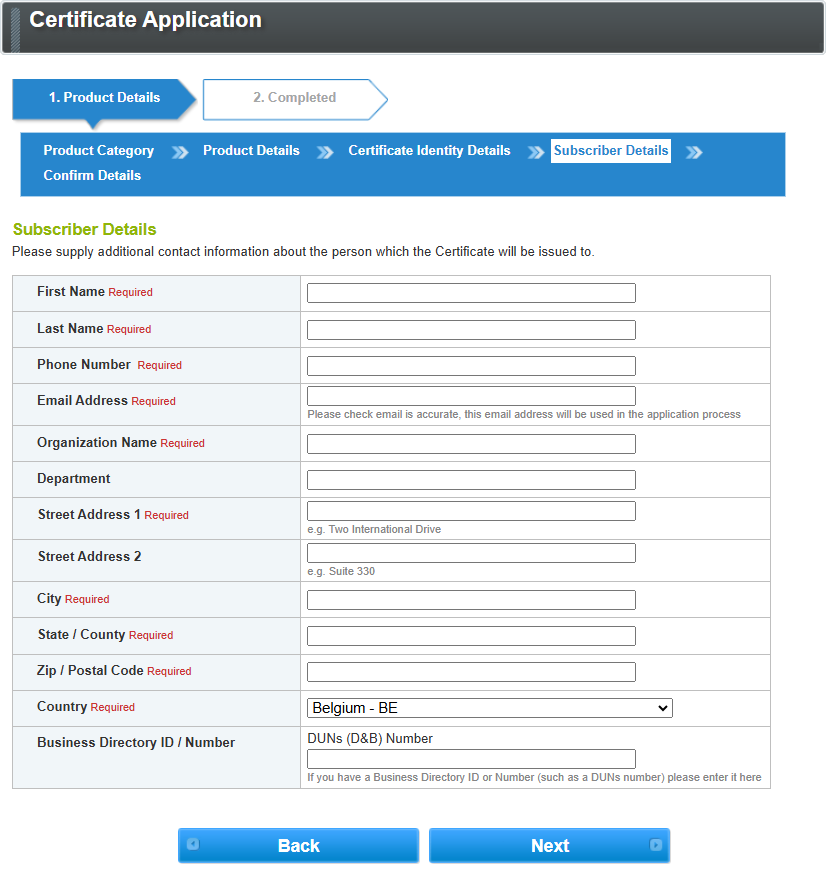
*Required fieldsFIELD
DESCRIPTION
First Name*
Enter the persons first name to which the Certificate will be issued to.
Last Name*
Enter the persons last name to which the Certificate will be issued to.
Phone Number*
Enter the persons direct phone number to which the Certificate will be issued to.
Enter the email address where the verification / approval email and certificate download link will be sent to.
NOTE: Check email is accurate, this email address will be used in the application process.Organization Name*
Enter the organization name of the person to which the Certificate will be issued to.
Department
Enter the department of the person to which the Certificate will be issued to.
Street Address 1*
Enter the primary details of the address of the organization to which the Certificate will be issued to.
Example: Two International DriveStreet Address 2
Enter the secondary details of the address of the organization to which the Certificate will be issued to.
Example: Suite 330City*
Enter the address city of the organization to which the Certificate will be issued to.
State / County*
Enter the state or county of the organization to which the Certificate will be issued to.
Zip / Postal Code*
Enter the zip or postal code of the organization to which the Certificate will be issued to.
Country*
Enter the country of the organization to which the Certificate will be issued to.
Business Directory ID/ Number
Enter your Business Directory ID or Number (such as a DUNs (D&B) Number)
-
Review all entered details.
-
Read the PersonalSign Subscriber Agreement.
-
If you agree, click Complete, otherwise click Back to edit previous entries.
-
The screen will refresh and indicate that the STEP 1 of the Certificate application process is complete. Simultaneously, an approval email (see email approval process) will be sent to the nominated email address within 72 hours (see Nominated Email Address).
IMPORTANT: Once you have created your PersonalSign 3 Pro certificate application online, a Wiesinger LVA representative will contact you with instructions to begin the POSTIDENT process.
IDENTITY VERIFICATION IS PERFORMED IN PERSON (FACE-TO-FACE). For more information, contact Wiesinger LVA to confirm whether they require the identity verification process to be completed in person and details on the POSTINDENT procedure.
-
In the PersonalSign (Digital ID) Certification page, fill in the Product Details form, then click Weiter to proceed to the Summary of Certificate Selection.
FIELDS
DESCRIPTION
Product:
Class of the PersonalSign CertificateClass 3 certificate issued to a natural person and email address with personal validation (or POSTIDENT).
INTERVAT Compliant: These certificates are approved for use with Belgian tax authorities (tax portal).
NOTE: These certificates can currently only be issued with the Client Authentication property and are not currently suitable for secure and confidential email communication.Type of PersonalSign Certificate
Professional certificate issued to an individual (first name, last name) and email address, with the organization, company, or government agency listed in the certificate, as well as an optional department.
Order Type
Select the type based on the need:
-
New Order - for new order placements
-
Replacement Issuance** - for replacement requests
**=Flat-rate fee; free of charge with prior approval
Certificate Validity (Term)
Select the certificate validity period and take advantage of an immediate discount for multi-year validity.
Certificate Issuance Options
Specify the additional options for certificate issuance:
P12/PFX - In the standard procedure, your certificate is generated as a P12/PFX file containing a private and public key after approval and made available via a secure download (PKCS12).
NOTE: This is the most recommended option.
Optional:-
Key generation based on a CSR file (PKCS10) - You must use your own certificate management program to create the ‘Certificate Signing Request’ (CSR) and upload it after approval.
NOTE: This option is not available for Class 3Pro certificates. -
Key generation in your web browser or via the CSP driver of a USB eToken or smart card.
Number of Licenses
Enter the required number of client licenses/certificates.
Campaign Code
If you have received a campaign code, enter it in the space provided.
Coupon Code
If you have received a coupon code, enter it in the space provided.
Order total (net)
Prices are exclusive of VAT applicable at the time of invoicing;
VAT-exempt delivery applies to commercial customers in EU countries with a valid VAT ID number and to customers based in non-EU countries.
Private customers based in EU countries will be charged the applicable VAT rate of their country of residence; otherwise, German VAT will apply.
-
- Read the certificate summary, then click Weiter to continue, otherwise, click Zurück to edit previous entries.
- In the Account Setup - Customer Information page, enter required fields, then click Weiter to continue to the Account Setup - Certificate Applicant / User section. Otherwise, click Zurück to edit previous entries.
INFORMATION: The Certificate Identity Details details will be vetted and included as the Subscriber identity within the issued certificate.
Importing Customer Data / Existing Customers
FIELDS
DESCRIPTIONIf you are already a customer, enter your customer number (K-number) or account ID (PAR-number) and select an option for data synchronization. We will verify your data using your customer number or account ID and the information provided under Name. This will be done after we receive your registration.
Customer Number / Account-ID:
Enter your customer number (K-number) or account ID (PAR-number) in the space provided.
Options
Select the appropriate request:
-
Transfer information from customer account
-
Update customer data as specified below
Customer Information (Company / Organization / Individual)
Provide the details of the company, organization, or individual for whom the customer account is being created.
FIELDS
DESCRIPTIONName*
(Company/Organization/Person)Enter legal name of the company, organization, or person in your organization to whom certificate will be registered to.
Example: GlobalSign AG, or first and last name for individualsIndustry / Category*
Select the appropriate industry or category form the drop down box.
IMPORTANT: The selected option in the Industry / Category section must match the selected option in the Legal Form or Type section.
Street and House Number*
Enter the address details in the space provided.
Zip Code and City*
Enter the zip code and city in which the Organization is registered to in the spaces provided.
Example: 85609 AschheimState*
Specify State in which the Organization is registered at.
Country*
Select the Country in which the Organization is registered at from the drop down box.
Additional Address
Provide additional address information in the space provided.
Time Zone
Select the appropriate time zone from the drop down box.
Phone Number (including area code)*
Enter the direct phone number to which the Certificate will be registered to.
Example: Office number, e.g.: +49 89 427182-40 - NOT A SPECIAL OR SERVICE NUMBER.
Fax (with area code)
Enter the facsimile phone number to which the Certificate will be registered to.
Example: Office number, e.g.: +49 89 427182-40 - NOT A SPECIAL OR SERVICE NUMBER.
Legal Form or Type*
Select the appropriate legal form or type from the drop down box.
Court of Registration /
Office or Governing Body /
Supervisory AuthorityProvide details regarding registration or filing in the space provided.
Example: AG Munich or KVR Munich, or governing body or higher-level authority / agency
Registration Number / Date, or Date of Incorporation
Enter the commercial register number, company number, or business number in the space provided.
Example: HRB 12345; registration number or date of application/incorporation if not registered.-
If unknown, enter n.b.
-
If not registered, enter n.reg.
VAT ID Number
This information is required for business customers from EU member states.
DUNS Number
(UPIK Record Reference)If available, enter provide your Dun & Bradstreet registration number in the space provided.
Click here to check your DUNS / UPIK registration online.How did you hear about GlobalSign?
Select the appropriate response from the drop down box.
*Required fields
-
-
In the Account Setup - Certificate Applicant / User page, enter the required information, then click Weiter to continue to the Account Setup - Billing & Payment Method section. Otherwise, click Zurück to edit previous entries.
Information about the Certificate Applicant / User
IMPORTANT: The information regarding the certificate holder must match the information in the certificate. If the domain holder differs from the certificate holder, a Power of Attorney is required.
WARNING: Incorrect or incomplete information may delay or prevent certification.
FIELDS
DESCRIPTION
Optional Data Transfer
If applicable, click Übernahme Kundendaten to copy the information from the customer data and enter only the information that is not already available.
User ID / Customer Number
Enter your existing customer or partner number (K-1234 or P-1234) or international account ID (PAR-ID).
NOTE: If you are registering for the first time, leave this field blank; the ID will be assigned automatically.Password* and Confirmation*
Enter a Pickup password that is at least 8 characters long. Alphanumeric characters only (A–Z, 0–9). Then proceed to confirm nominated password.
IMPORTANT: For security reasons, please specify a Pickup password that will be required to release your PersonalSign3 digital certificate once it’s been approved. For more information on the Password Specifications and Requirements, refer to this page.
WARNING: You must remember this password in order to download your digital certificate. IT IS A MUST THAT YOU SECURE YOUR PASSWORD! Forgotten Pickup passwords will require that the order be cancelled and resubmitted.
Company / Organization / Individual*
Enter legal name of the company, organization, or person in your organization to whom certificate will be registered to.
Example: GlobalSign AG; for individuals, first name and last nameDepartment
Enter the department associated to the company, organization, or person in your organization.
Example: Management, ITFirst Name*
Enter first name of the applicant, representative, authorized representative, or agent.
Last Name, Title, and Designation*
Enter last name of the person.
NOTE: Title is optional (example: Dr., Eng.)Role / Position
Enter information about professional position associated to the company, organization, or person in your organization.
Example: Managing Director, Admin-C
Enter the email address where the verification / approval email and certificate download link will be sent to.
NOTE: A general email address is not permitted here.
Phone Number (including area code)*
Enter the direct phone number to which the Certificate will be registered to.
Example: Office number, e.g.: +49 89 427182-40 - NOT A SPECIAL OR SERVICE NUMBER.
Fax (with area code)
Enter the facsimile phone number to which the Certificate will be registered to.
Example: Office number, e.g.: +49 89 427182-40 - NOT A SPECIAL OR SERVICE NUMBER.
Street and House Number*
Enter the address details in the space provided.
Example: 2 Otto-Hahn StreetStreet Modifier
Enter additional address information in the space provided.
Example: 1st floorZip Code and City*
Enter the zip code and city in which the Organization is registered to in the spaces provided.
Example: 85609 AschheimState*
Specify State in which the Organization is registered at.
Country*
Select the Country in which the Organization is registered at from the drop down box.
Additional Address
Provide additional address information in the space provided.
Legal Form or Type*
Select the appropriate legal form or type from the drop down box.
Court of Registration /
Office or Governing Body /
Supervisory Authority*Provide details regarding registration or filing in the space provided.
Example: AG Munich or KVR Munich, or governing body or higher-level authority / agency
Registration Number / Date, or Date of Incorporation*
Enter the commercial register number, company number, or business number in the space provided.
Example: HRB 12345; registration number or date of application/incorporation if not registered.-
If unknown, enter n.b.
-
If not registered, enter n.reg.
Newsletter & Offers
click Ja If you would like to receive GlobalSign newsletters, offers, and information that may be of interest.
*Required fields
-
-
In the Account Setup - Billing & Payment Methods page, enter the required information, then click Weiter to continue to the Summary: Account Setup section. Otherwise, click Zurück to edit previous entries.
Billing Recipient Information
Provide the personal and company/organization details of the billing recipient.
WARNING: Incorrect or incomplete information may delay or prevent certification. The information must include the full company name or designation and the correct address.
A change to the recipient is no longer possible after the certificate or invoice has been issued.
FIELDS
DESCRIPTION
Optional Data Transfer
If applicable, click Übernahme Kundendaten to copy the information from the customer data and enter only the information that is not already available.
Or, click Bishergie Angaben to auto-populate recently entered fields.Account ID / Customer Number*
Enter your existing customer or partner number (K-1234 or P-1234) or international account ID (PAR-ID).
NOTE: If you are registering for the first time, leave this field blank; the ID will be assigned automatically.Password and Confirmation*
Enter a Pickup password that is at least 8 characters long. Alphanumeric characters only (A–Z, 0–9). Then proceed to confirm nominated password.
IMPORTANT: For security reasons, please specify a Pickup password that will be required to release your PersonalSign3 digital certificate once it’s been approved. For more information on the Password Specifications and Requirements, refer to this page.
WARNING: You must remember this password in order to download your digital certificate. IT IS A MUST THAT YOU SECURE YOUR PASSWORD! Forgotten Pickup passwords will require that the order be cancelled and resubmitted.
Company / Organization / Individual*
Enter legal name of the company, organization, or person in your organization to whom certificate will be registered to.
Example: GlobalSign AG; for individuals, first name and last nameDepartment
Enter the department associated to the company, organization, or person in your organization.
Example: Management, ITFirst Name*
Enter first name of the applicant, representative, authorized representative, or agent.
Last Name, Title, and Designation*
Enter last name of the person.
NOTE: Title is optional (example: Dr., Eng.)Role / Position
Enter information about professional position associated to the company, organization, or person in your organization.
Example: Managing Director, Admin-C
Email Address*
Enter the direct email address where the verification email will be sent to.
NOTE: A general email address is not permitted here.
Phone Number (including area code)*
Enter the direct phone number to which the Certificate will be registered to.
Example: Office number, e.g.: +49 89 427182-40 - NOT A SPECIAL OR SERVICE NUMBER.
Fax (with area code)
Enter the facsimile phone number to which the Certificate will be registered to.
Example: Office number, e.g.: +49 89 427182-40 - NOT A SPECIAL OR SERVICE NUMBER.
Street and House Number*
Enter the address details in the space provided.
Example: 2 Otto-Hahn StreetStreet Modifier
Enter additional address information in the space provided.
Example: 1st floorZip Code and City*
Enter the zip code and city in which the Organization is registered to in the spaces provided.
Example: 85609 AschheimState*
Specify State in which the Organization is registered at.
Country*
Select the Country in which the Organization is registered at from the drop down box.
Additional Address
Provide additional address information in the space provided.
VAT ID Number*
Enter required VAT ID information in the space provided.
(Information required for VAT-exempt invoicing to customers in EU countries)Newsletter & Offers
Click Ja If you would like to receive GlobalSign newsletters, offers, and information that may be of interest.
NOTE: This information is intended solely for GlobalSign and will not be shared with third parties.Payment Method Information
FIELDS
DESCRIPTION
Payment Method*
Select your preferred payment method.
Options
The certificate is issued subject to timely and successful receipt of payment. In the event of late payment or a chargeback, we reserve the right to suspend or block the certificate at your expense.
NOTE: Any collection fees, expenses, and processing costs incurred will be charged additionally.
-
Advance Bank Transfer - For this payment method, we issue the invoice upon receipt of the order and wait for payment to be received before issuing the certificate; otherwise, invoicing takes place upon issuance of the certificate.
-
Bank Transfer with 14-day payment term - For this payment method, we issue the invoice upon issuance of the certificate. The payment term is binding and begins on the date the invoice is issued (i.e., the delivery date of the electronic invoice).
NOTE: Exceeding the payment term will result in additional costs. -
SEPA Direct Debit (only from German bank accounts) - For this payment method, we process direct debits or credit card charges upon issuance of the invoice.
*Required fields
-
-
Review all entered details and read the Customer Account Terms of Use. If you agree, click Ich stimme zu, otherwise click Zurück to edit previous entries.
The screen will refresh and indicate that the STEP 1 of the Certificate application process is complete. Simultaneously, an approval email (see email approval process) will be sent to the nominated email address within 72 hours (see Nominated Email Address). -
Proceed to Step 2: Processing the PersonalSign 3 Pro Agreement Form.
IMPORTANT: Once your PersonalSign 3 Pro certificate application is created online, a Dairiten (MARKTCONCURRENT) LVA representative will go to you in person.
IDENTITY VERIFICATION IS PERFORMED IN PERSON (FACE-TO-FACE). For more information, contact Dairiten (MARKTCONCURRENT) LVA to confirm whether they require the identity verification process to be completed in person.
-
In the Certificate Application page, fill in the Product Details form:
- Click PersonalSign 3 Pro, then click Next.
- Key Generation Options: Select the appropriate download option, then click Next to continue to the Certificate Identity Details section.
FIELDS
DESCRIPTION
Download as .pfx (PKCS12)
Certificate and private key will be available for download using any browser.
NOTE: This is the most recommended option.Download using Internet Explorer (IE) Compatibility Mode
Certificate Signing Request (CSR) is automatically generated using IE Compatibility mode.
Select this method if you wish to install your EV Code Signing, AATL, and Qualified certificates directly to an eToken.
- Click PersonalSign 3 Pro, then click Next.
- Enter your Certificate identity details, then click Next to continue to the Subscriber Details section, otherwise click Back to edit previous entries.
INFORMATION: The Certificate Identity Details will be vetted and included as the Subscriber identity within the issued certificate.
FIELDS
DESCRIPTION
Your Name*
Enter legal name of person in your organization who is going to use the digital certificate. Specify your First Name (required), Middle/Initial (optional) and Last Name (required).
Organization*
Specify the Organization Registered Name in full, including Inc, Ltd, NV, Plc.
Locality
Specify the City or Town in which the Organization is registered at.
State or Province
Specify State or Province in which the Organization is registered at. For US applications you must specify the State in full.
Country*
Specify Country in which the Organization is registered at.
Enter the email address where the verification / approval email and certificate download link will be sent to.
Pickup Password*
Enter a Pickup password that is at least 8 characters long. Alphanumeric characters only (A–Z, 0–9). Then proceed to confirm nominated password.
IMPORTANT: For security reasons, please specify a Pickup password that will be required to release your PersonalSign3 digital certificate once it’s been approved. For more information on the Password Specifications and Requirements, refer to this page.
WARNING: You must remember this password in order to download your digital certificate. IT IS A MUST THAT YOU SECURE YOUR PASSWORD! Forgotten Pickup passwords will require that the order be cancelled and resubmitted.
Pickup Password (re-enter)*
Re-enter password to confirm entry.
*Required fields
-
Enter Subscriber details, then click Next to continue to the Confirm Details section, otherwise click Back to edit previous entries.
*Required fieldsFIELD
DESCRIPTION
First Name*
Enter the persons first name to which the Certificate will be issued to.
Last Name*
Enter the persons last name to which the Certificate will be issued to.
Phone Number*
Enter the persons direct phone number to which the Certificate will be issued to.
Email Address*
Enter the email address where the verification / approval email and certificate download link will be sent to.
NOTE: Check email is accurate, this email address will be used in the application process.Organization Name*
Enter the organization name of the person to which the Certificate will be issued to.
Department
Enter the department of the person to which the Certificate will be issued to.
Street Address 1*
Enter the primary details of the address of the organization to which the Certificate will be issued to.
Example: Two International DriveStreet Address 2
Enter the secondary details of the address of the organization to which the Certificate will be issued to.
Example: Suite 330City*
Enter the address city of the organization to which the Certificate will be issued to.
State / County*
Enter the state or county of the organization to which the Certificate will be issued to.
Zip / Postal Code*
Enter the zip or postal code of the organization to which the Certificate will be issued to.
Country*
Enter the country of the organization to which the Certificate will be issued to.
Business Directory ID/ Number
Enter your Business Directory ID or Number (such as a DUNs (D&B) Number)
-
Review all entered details.
- Read the PersonalSign Subscriber Agreement.
- If you agree, click Complete, otherwise click Back to edit previous entries.
The screen will refresh and indicate that the STEP 1 of the Certificate application process is complete. Simultaneously, an approval email (see email approval process) will be sent to the nominated email address within 72 hours (see Nominated Email Address).

- Read the PersonalSign Subscriber Agreement.
-
Proceed to STEP 2: Processing the PersonalSign 3 Pro Agreement Form.
IMPORTANT: Once you have completed your PersonalSign 3 Pro certificate application online, present all required documentation to your chosen LVA: Lawyer, Notary Public, or Certified Public Accountant.
IDENTITY VERIFICATION IS PERFORMED IN PERSON (FACE-TO-FACE). For more information, contact your chosen LVA (Lawyer, Notary Public, or Certified Public Accountant) to confirm whether they require the identity verification process to be completed in person.
-
In the Certificate Application page, fill in the Product Details form:
-
Click PersonalSign 3 Pro, then click Next.
-
Key Generation Options: Select the appropriate download option.
FIELDS
DESCRIPTIONDownload as .pfx (PKCS12)
Certificate and private key will be available for download using any browser.
NOTE: This is the most recommended option.Download using Internet Explorer (IE) Compatibility Mode
Certificate Signing Request (CSR) is automatically generated using IE Compatibility mode.
Select this method if you wish to install your EV Code Signing, AATL, and Qualified certificates directly to an eToken.
-
-
Enter your Certificate identity details:
INFORMATION: The Certificate Identity Details will be vetted and included as the Subscriber identity within the issued certificate.
FIELDS
DESCRIPTIONYour Name*
Enter legal name of person in your organization who is going to use the digital certificate. Specify your First Name (required), Middle/Initial (optional) and Last Name (required).
Organization*
Specify the Organization Registered Name in full, including Inc, Ltd, NV, Plc.
Locality
Specify the City or Town in which the Organization is Registered.
State or Province
Specify State or Province in which the Organization is Registered. For US applications you must specify the State in full.
Country*
Specify Country in which the Organization is Registered.
Enter the email address where the verification / approval email and certificate download link will be sent to.
Pickup Password*
Enter a Pickup password that is at least 8 characters long. Alphanumeric characters only (A–Z, 0–9). Then proceed to confirm nominated password.
IMPORTANT: For security reasons, please specify a Pickup password that will be required to release your PersonalSign3 digital certificate once it’s been approved. For more information on the Password Specifications and Requirements, refer to this page.
WARNING: You must remember this password in order to download your digital certificate. IT IS A MUST THAT YOU SECURE YOUR PASSWORD! Forgotten Pickup passwords will require that the order be cancelled and resubmitted.
Pickup Password (re-enter)*
Re-enter password to confirm entry.
*Required fields
-
Enter Subscriber details, then click Next to continue to the Confirm Details section, otherwise click Back to edit previous entries.
FIELD
DESCRIPTION
First Name*
Enter the persons first name to which the Certificate will be issued to.
Last Name*
Enter the persons last name to which the Certificate will be issued to.
Phone Number*
Enter the persons direct phone number to which the Certificate will be issued to.
Email Address*
Enter the email address where the verification / approval email and certificate download link will be sent to.
NOTE: Check email is accurate, this email address will be used in the application process.Organization Name*
Enter the organization name of the person to which the Certificate will be issued to.
Department
Enter the department of the person to which the Certificate will be issued to.
Street Address 1*
Enter the primary details of the address of the organization to which the Certificate will be issued to.
Example: Two International DriveStreet Address 2
Enter the secondary details of the address of the organization to which the Certificate will be issued to.
Example: Suite 330City*
Enter the address city of the organization to which the Certificate will be issued to.
State / County*
Enter the state or county of the organization to which the Certificate will be issued to.
Zip / Postal Code*
Enter the zip or postal code of the organization to which the Certificate will be issued to.
Country*
Enter the country of the organization to which the Certificate will be issued to.
Business Directory ID/ Number
Enter your Business Directory ID or Number (such as a DUNs (D&B) Number)
*Required fields
-
Review all entered details and read the PersonalSign Subscriber Agreement. If you agree, click Complete, otherwise click Back to edit Certificate Identity Detail entries.
The screen will refresh and indicate that the STEP 1 of the Certificate application process is complete. Simultaneously, an approval email (see email approval process) will be sent to the nominated email address within 72 hours (see Nominated Email Address).
-
Proceed to STEP 2: Processing the PersonalSign 3 Pro Agreement Form.
STEP 2: Processing the PersonalSign 3 Pro Agreement Form
-
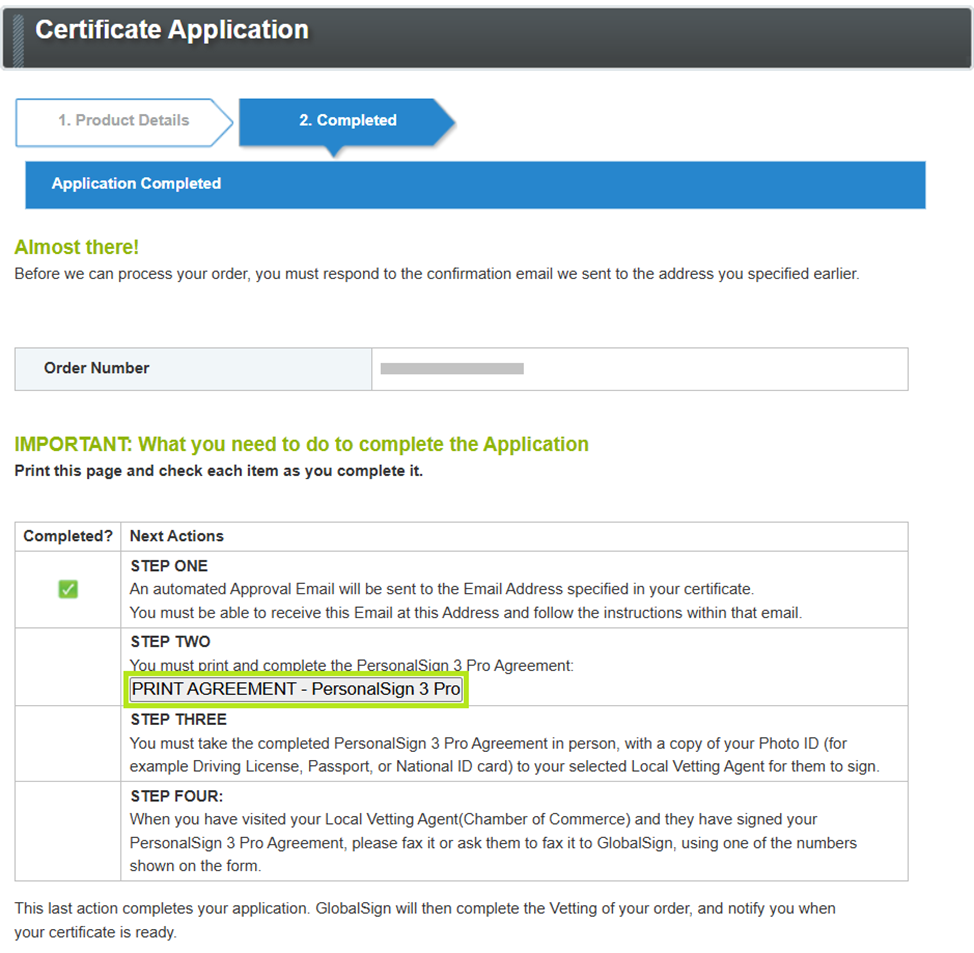
In the Certificate Application screen, click on the PRINT AGREEMENT – PersonalSign 3 Pro button to print the PersonalSign3 Pro Digital ID Request form.
-
Under the GlobalSign Subscriber Agreement section of the PersonalSign3 Pro Digital ID Request form, fill in the following fields:
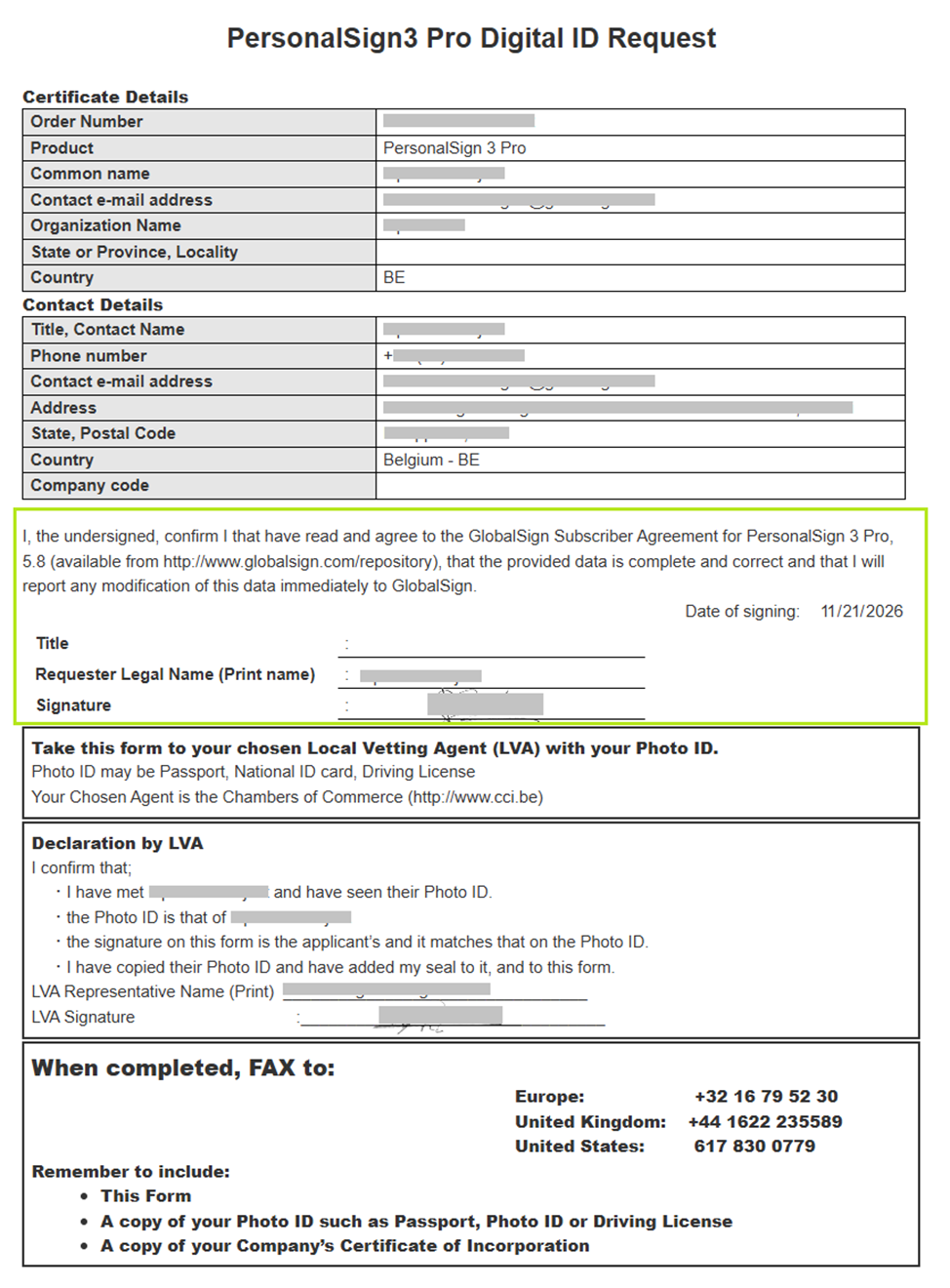
FIELDS
DESCRIPTIONDate of signing*
Enter the date you sign the agreement.
Title
Enter the requester’s professional title.
Requester Legal Name (Print name)*
Enter your name if you are the person that the Certificate will be issued to.
Signature*
Append your signature to confirm your acceptance of the GlobalSign Subscriber Agreement.
*Required fields
-
Proceed to STEP 3: Submitting the Request to the LVA.
STEP 3: Submitting the Request to the LVA
-
Take the accomplished PersonalSign3 Pro Digital ID Request form to your chosen LVA, along with a valid and recent photo ID (passport, national ID card, or driver’s license).
NOTE: The LVA's depend on which region you are applying the PersonalSign 3 Pro from.-
Belgium, the chosen agent is the Chamber of Commerce↗ LVA.
-
Germany, the chosen agent is the Wiesinger↗ LVA.
-
Netherlands, the chosen agent is the Dairiten (MARKTCONCURRENT)↗ LVA.
-
Other Regions, the chosen agent is either Lawyer, Notary Public, or Certified Public Accountant acting as the LVA.
-
-
In the Declaration by LVA (Local Vetting Agent) section, the LVA representative must completely fill in the required attestation fields:
IMPORTANT: This declaration confirms that a face-to-face identity check has been completed.
Take this form to your chosen Local Vetting Agent (LVA) with your Photo ID.
Photo ID may be Passport, National ID card or Driving LicenseThe LVA representative is attesting to the following statements below:
REQUIREMENT
LVA Representative have
Physical Presence
met the applicant (referred to here as the customers first and last name as declared in the certificate) request in person.
ID Verification
inspected a valid Photo ID and confirmed it matches the person in front of them.
Signature Match
verified that the signature you provided on the form matches the one on your official ID.
Documentation
made a copy of your ID and applied their official seal to both the copy and this specific form.
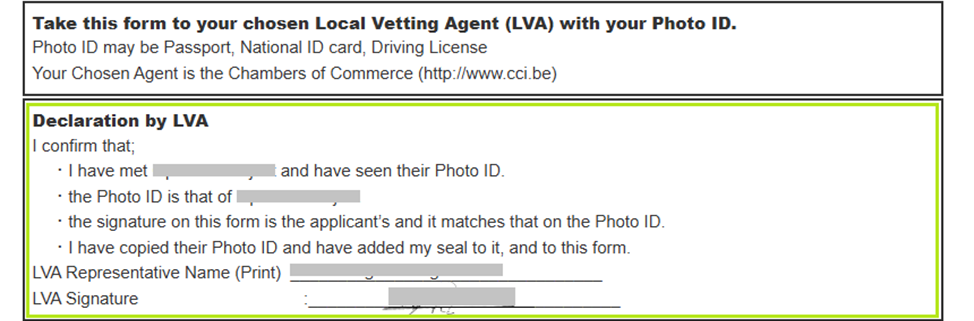
REQUIREMENTDESCRIPTION
LVA Representative Name*
The authorized vetting representative must print their full legal name.
LVA Signature*
The representative must sign the document to attest to the identity verification.
LVA Official Seal/Stamp**
The representative must stamp the document with the LVA Seal to attest to the identity verification.
WARNING: The form instructions require the LVA seal/stamp. If the physical LVA stamp or seal is missing, the validation may be rejected.
Required fields
**Required authentication -
The LVA's (from Belgium, Germany, and the Netherlands) then submits the vetted requirements to GlobalSign (see What's Next?).
IMPORTANT: For Other Regions, collect the following documents from your chosen LVA (Lawyer, Notary Public, or Certified Public Accountant):
- PersonalSign 3 Pro Digital ID Request Form with the completed LVA Declaration
- Certificate of Incorporation
- Valid photo ID (passport, national ID card, or driver’s license)
Scan the PersonalSign 3 Pro requirements as indicated above and send it to GlobalSign↗.
Processing the PersonalSign 3 Pro Digital ID Request
Processing through Email
-
Check your email inbox of the nominated email address (see Nominated Email Address). Read on the instructions as indicated in the email and wait for the Approval email.
NOTE: The verification / approval email is sent to the nominated email address within 72 hours.
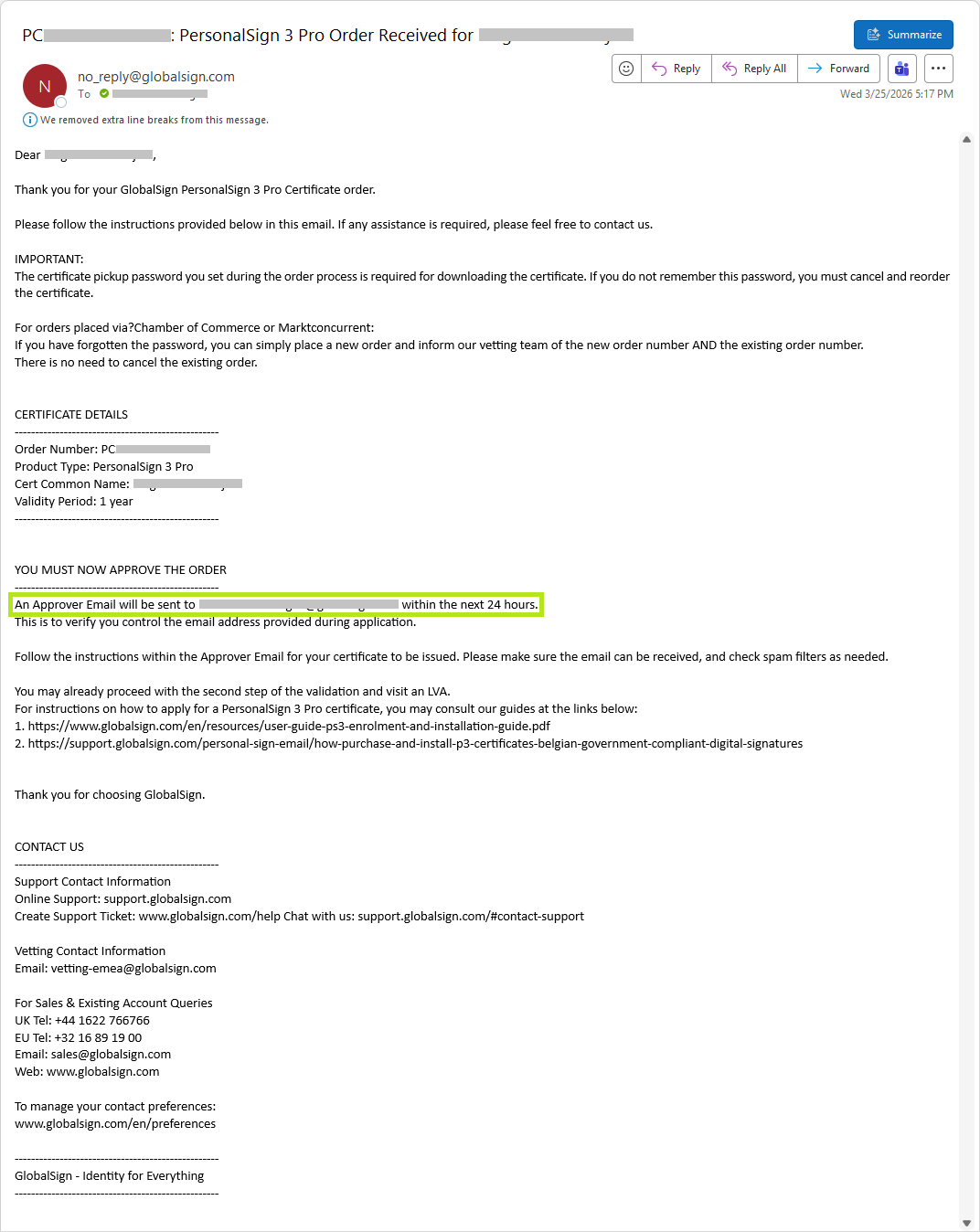
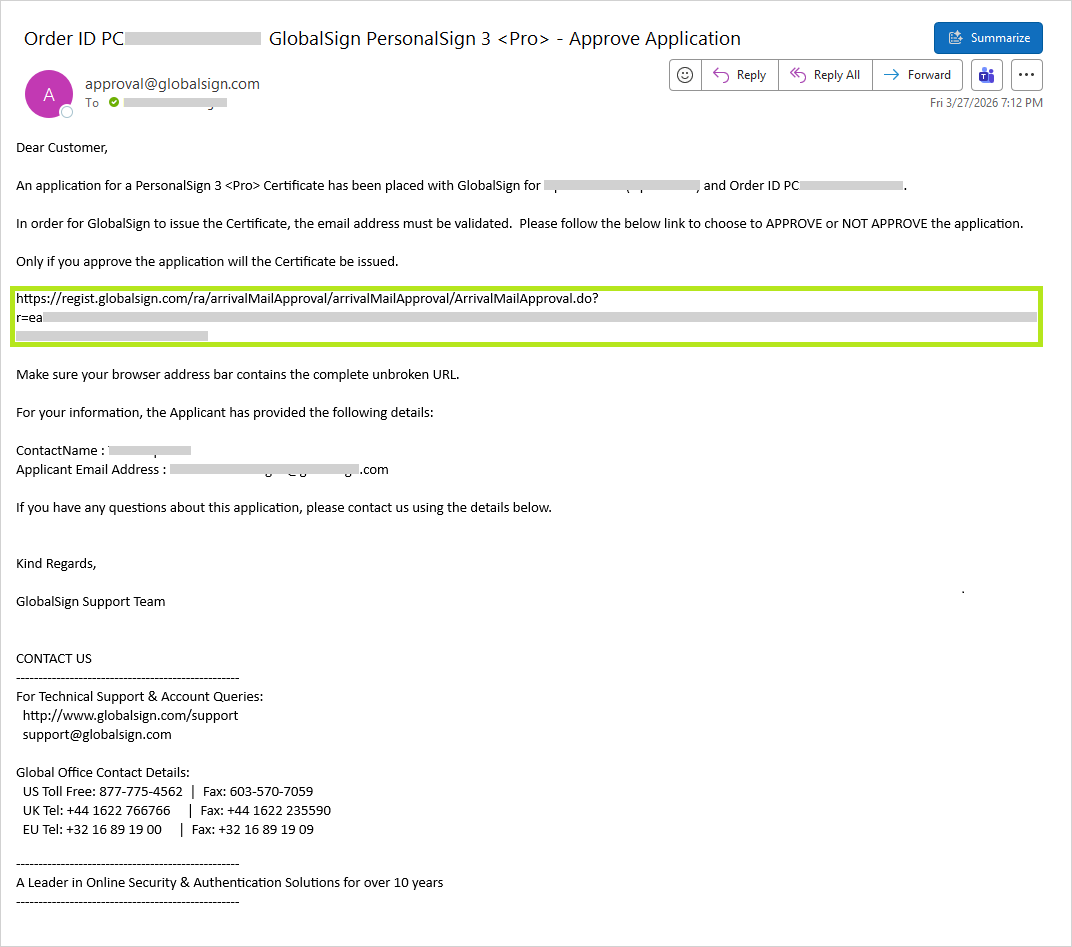
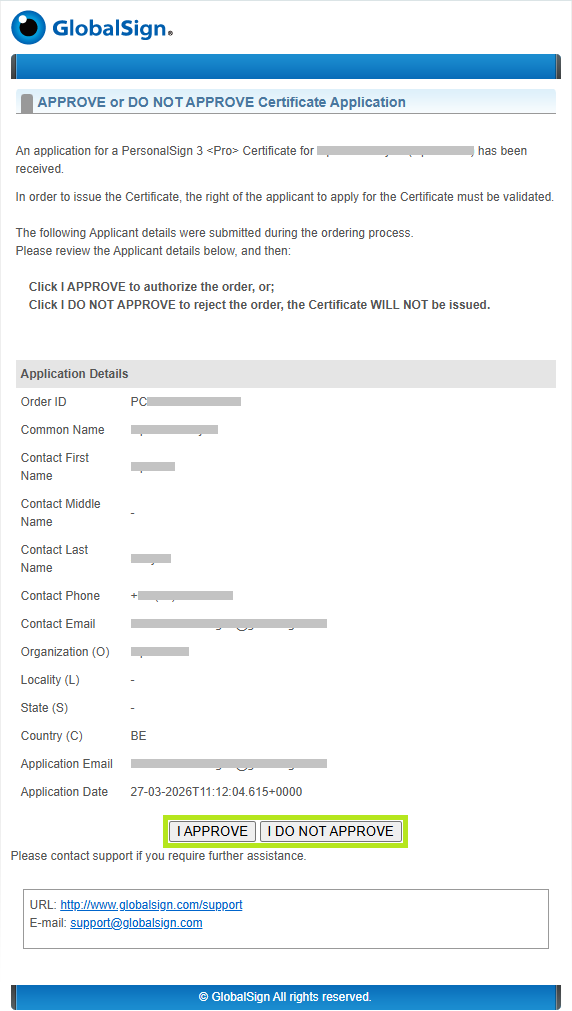
- Within 24 hours, you will receive another email containing the approval link. Copy the link as shown in the image provided and paste this in your browser address bar.
-
This action opens the APPROVE or DO NOT APPROVE Certificate Application page. Review the details and click the I APPROVE button to continue with the process, otherwise click I DO NOT APPROVE to end transaction.
WARNING: Click the I APPROVE button only once. Clicking the button more than once will result in the following error message:
“Sorry, the approval challenge has not been successful. Please contact support for assistance.”
-
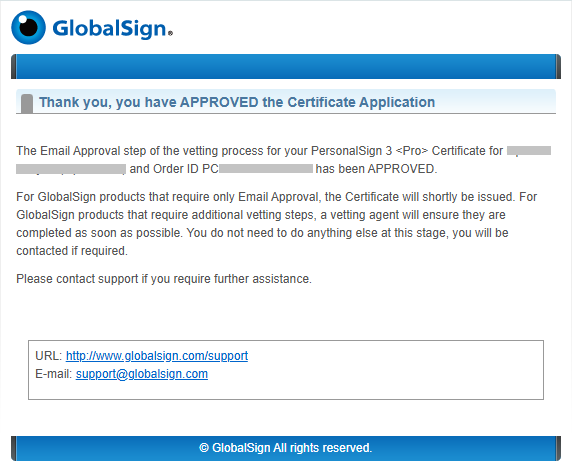
The page will refresh show a confirmation detail.
WHAT'S NEXT? If the vetting is successful, you will receive an email containing the link to your GlobalSign Certificate.
Disclaimer: The vetting process will depend on the LVA's submission of the requirements, which may take 10 business days or less. Check with your LVA on their submission timelines.
Prerequisites:
- The LVA has completed their vetting process.
- Verified the requestors PersonalSign3 Pro Digital ID Request form
- Verified the requestors company Certificate of Incorporation
- Face-to-face identity check
- Verified Photo ID validity (passport, national ID card, or driver’s license)
- Verified requestors signature as it appears in the requestors Photo ID
- The LVA has submitted all necessary requirements to GlobalSign.
- PersonalSign3 Pro Digital ID Request form with fulfilled LVA Declaration
- Certificate of Incorporation
- Photo ID (passport, national ID card, or driver’s license)
Proceed with the download and installation of your PersonalSign 3 Pro Certificate.
Related Articles
SSL Configuration Test
Check your certificate installation for SSL issues and vulnerabilities.