
Download and Install AATL Certificates (HSM-based)
Jun 1, 2026
Download and Install AATL Certificates (HSM-based)
OVERVIEW: This page walks you through the process of downloading and installing your GlobalSign Adobe Approved Trust List (AATL) Certificate using HSM. At the completion of this procedure, your Certificate will be ready to place signatures on Adobe® Acrobat® or Reader® documents. For more certificate management guides, please refer to this page. For Token-based Certificates, please go to Install AATL Certificate (Token-based).
Prerequisites
-
Approved and vetted GlobalSign AATL Certificate. To approve your application, please refer to this page.
-
For Certificate pickup, you must have access to a Windows PC. Once the Certificate is installed, you may sign from other platforms such as OS X.
Guidelines
-
Open the Certificate Download Ready email and launch the pickup link using any available browser.
-
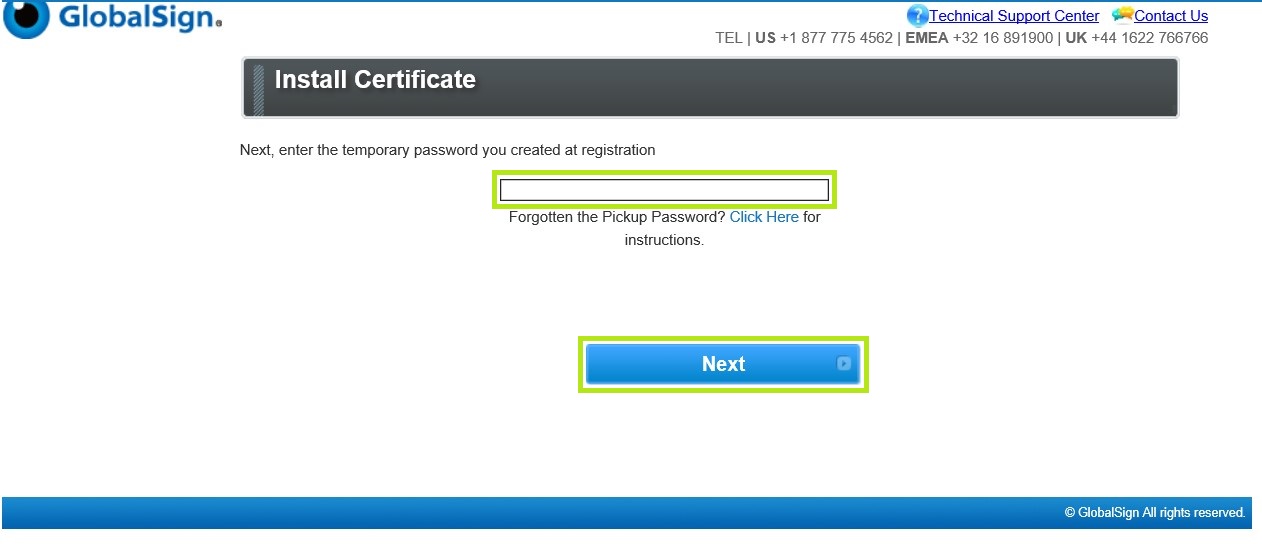
Enter the Temporary Pickup Password that was set at the time of ordering and click Next to continue.
-
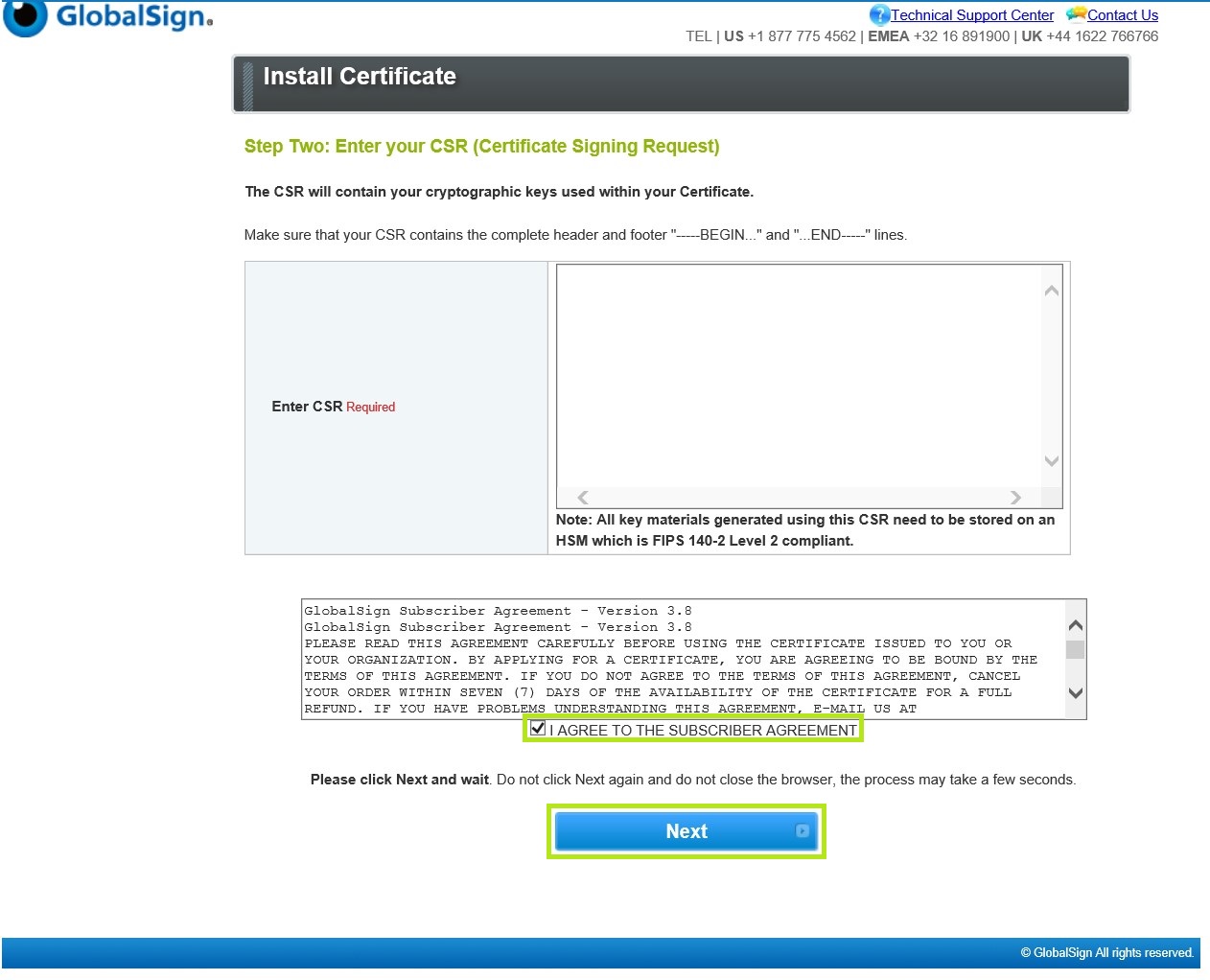
Enter your CSR on the Enter CSR Required box. Then, tick I Agree to the subscriber Agreement and click Next to proceed.
Note: Paste the CSR generated on the HSM which is FIPS 140-2 Level 2 compliant.
-
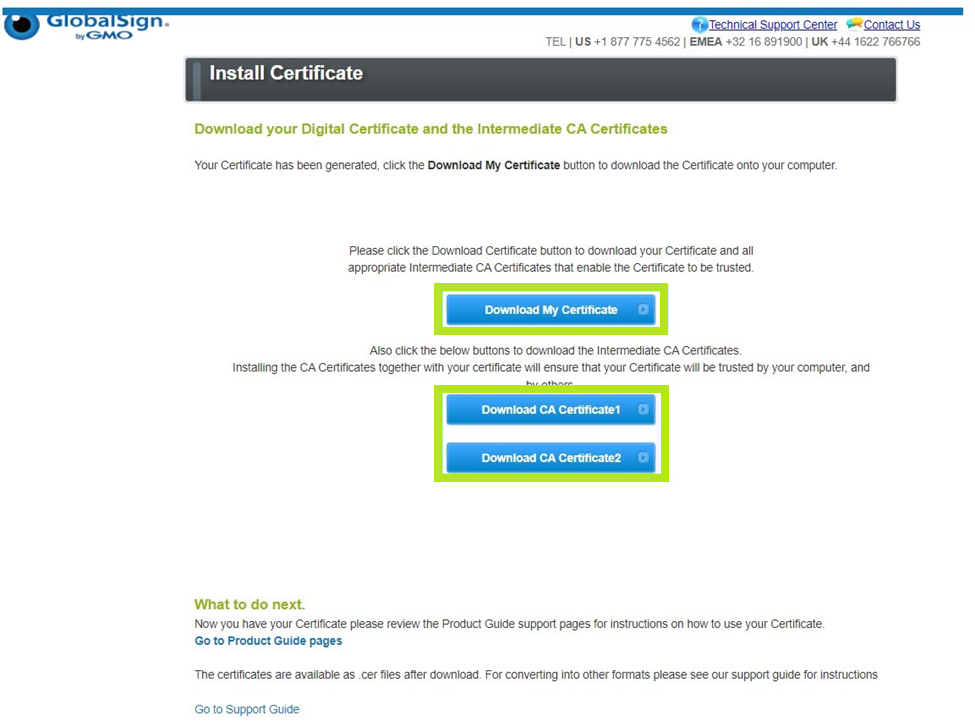
Download your Digital Certificate and Intermediate Certificates.
-
Import the Certificate into your HSM.
IMPORTANT: These Certificates will match the private key used to generate the CSR submitted during the ordering process, for information on how to import these Certificates on your HSM, please consult your HSM vendors instructions.
-
You are now ready to use your certificate.
|
WHAT'S NEXT: Now that you have successfully installed your AATL Certificate, you may now use it to sign documents. For instructions on how to sign documents with your GlobalSign AATL Certificate, see this page. |
SSL Configuration Test
Check your certificate installation for SSL issues and vulnerabilities.