
FDA ESG (Legacy) Guidelines
Jun 4, 2026
FDA ESG (Legacy) Guidelines
OVERVIEW: This page walks you through the process of setting up your FDA ESG (Legacy) Account with GlobalSign's PersonalSign Certificate. Can't find what you're looking for? Get in touch for assistance.
IMPORTANT NOTICE: If you are using a legacy FDA ESG Portal, you can follow the guidelines below. However, if you have transitioned to the ESG NextGen Portal, please contact the FDA ESG Help Desk to confirm certificate requirements for your account. Then, please follow the instructions from ESG NextGen AS2 Account Set-Up Steps to continue.
According to the latest update, submissions via Unified Submission Portal (USP) or API no longer require certificates, but if you are using an AS2 Gateway connection, you must still use digital certificates. To learn more about ESG NextGen, please refer to this FDA documentation.
Guidelines
To request a WebTrader test account, send an e-mail to ESGHelpDesk@fda.hhs.gov and include the following information:
-
Company Name
-
Your Name
-
Phone Number
-
Submission Method (WebTrader)
This will complete Box 1 on your FDA ESG Checklist.
Separately, complete the following checklist items with the FDA:
-
Box 5: Review information on the following pages:
-
Box 3 on the checklist is for obtaining your Personal Digital Certificate. The next step will guide you through this process.
If you are a first time GlobalSign customer, you can place PersonalSign certificate order through our website. During the ordering process, we will ask you to create your GlobalSign Certificate Center (GCC) account to manage your certificates and to process your future orders. If you are an existing customer and you have previously created a GCC account, please refer to this page.
After approving the application, your certificate will be ready to download and install. For download and installation instructions, please refer to this guide.
To export public key, please refer to this page and select the topic that best suit your needs.
You will receive a reply to your request in Step 1 from the FDA containing a temporary UserID and Password for your WebTrader test account.
Once you receive this e-mail you are ready to set up the test account. Be sure to have the following items available during this process:
- Company and Contact Information
- Your Public Key (.p7b) that you exported in Step 4.
-
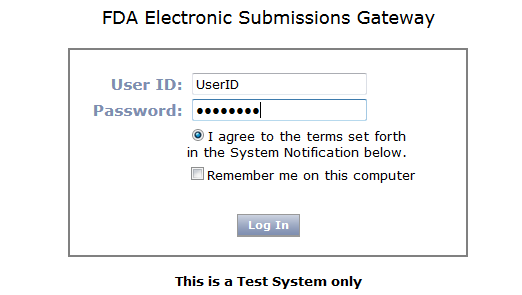
Click on the Log in link in the e-mail provided by the FDA. Enter your User ID and Password, and then click Log In.
-
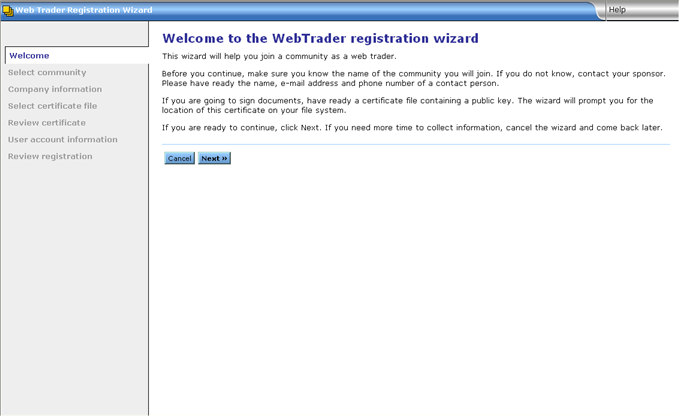
This will begin the WebTrader Registration Wizard. Click Next
-
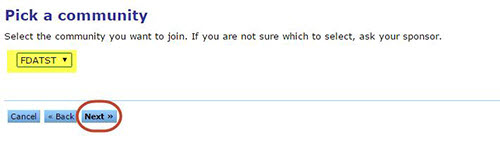
Select FDATST from the drop down menu on the Pick a community page.
-
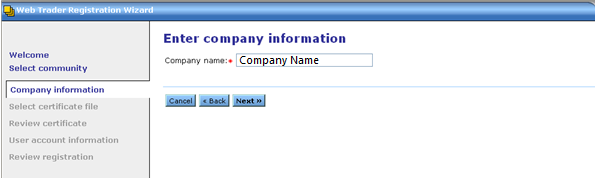
Enter your Company Name, and then click Next
NOTE: If you already have an account, whether it is AS2 or WebTrader, you must enter a unique string (different from the one used when registering for their first account) in the Company name field. This is to ensure that this account is treated as a separate identity in the database.
-
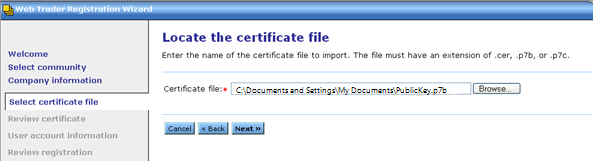
Click Browse and select your Public Key that you exported in Step 4, and then click Next.
-
Review your certificate details on the next screen for accuracy, and then click Next.
- Create a UserID and Password and enter your contact information. Then, click Next.
NOTE: This new UserID & Password will be used for future logins.

- Review your order summary for accuracy and press Finish when you are ready to complete the process. You will be returned to the Login page.
Typically on the next business day, the FDA will send an e-mail notification to the address entered during Test Account Registration indicating approval to send a test submission. You cannot complete a test submission until you receive this approval from the FDA. Once you receive this e-mail, continue on to the next step.
-
Navigate to https://esgtest.fda.gov/ to launch the FDA ESG Web Trader.
-
Enter your User ID and Password. Agree to the terms, then click Login
-
From the Web Trader menu on the top left, select Send document.
-
On the Send Document page, do the following:
-
Select an FDA Center from the Center drop down menu
-
Click Browse in the Path field.
-
Select the file or folder you intend to use for your test submission.
-
The Root Directory field will populate automatically.
-
Select a Submission Type from the drop down menu.
-
Click Browse to select your signing certificate.
This is the .pfx you downloaded from GlobalSign. -
Click Send.
-
-
Enter the password for your signing certificate (private key). Click OK.
-
The Upload Progress dialog box will appear. Once it says Done, your submission is complete.
SSL Configuration Test
Check your certificate installation for SSL issues and vulnerabilities.