
Order Certificate in MSSL
Mar 23, 2026
Order Certificate in MSSL
|
OVERVIEW: This page walks you through the process of ordering a new GlobalSign Certificate in your MSSL profile. At the completion of this procedure, you will be able to order new Certificates in MSSL. For more Certificate management guides in MSSL, please refer to this page. |
Guidelines
|
IMPORTANT: You should have an active profile and a valid domain before proceeding. If you haven't activated your MSSL profile, please refer to this page. To request a new domain, please follow this guide. |
-
Log in to your GCC account, then go to the Managed SSL tab.
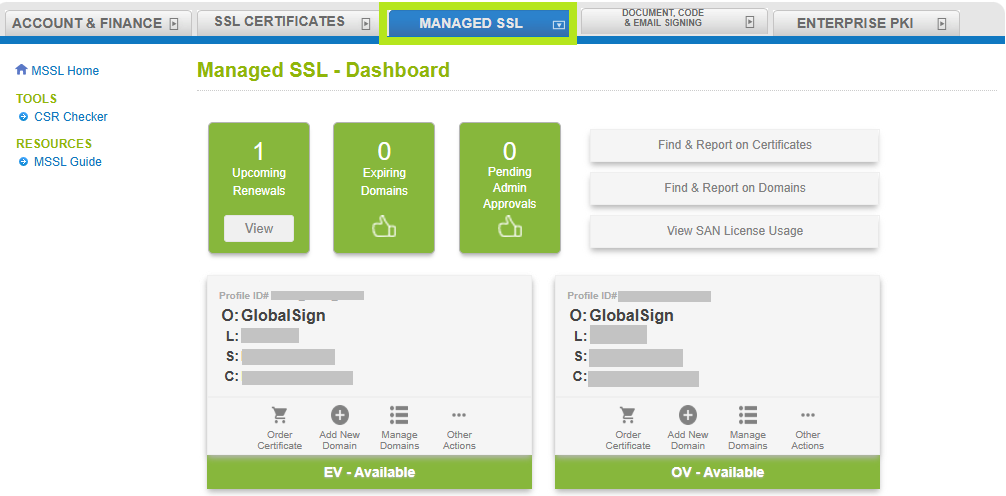
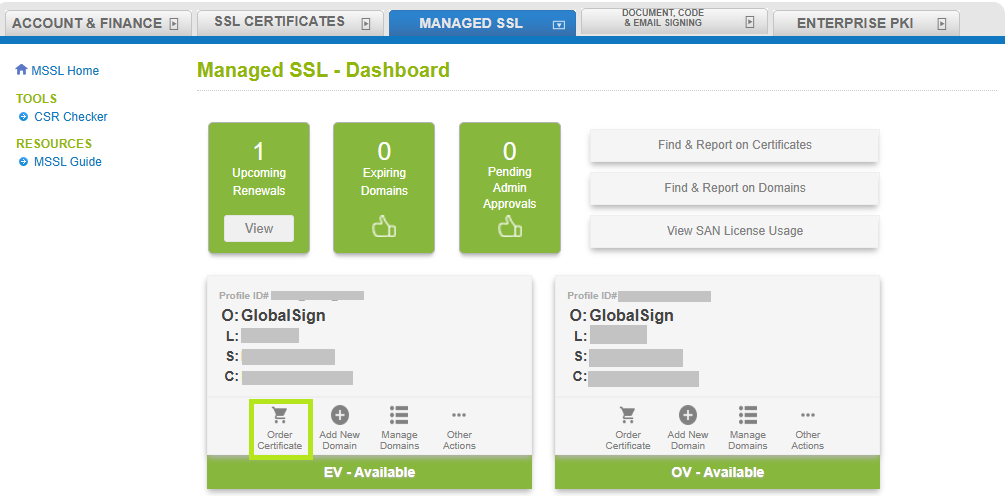
- In your selected profile, click Order Certificate.
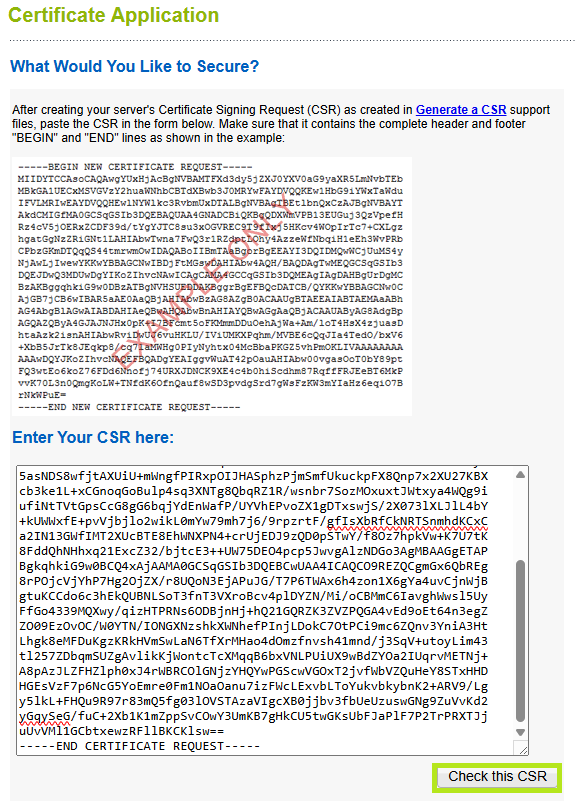
- Enter your CSR in the box and click Check this CSR to populate your CSR information.
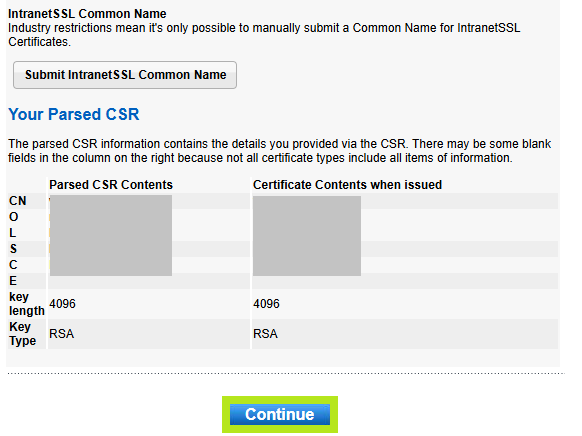
Then, confirm your CSR information and click Continue.
-
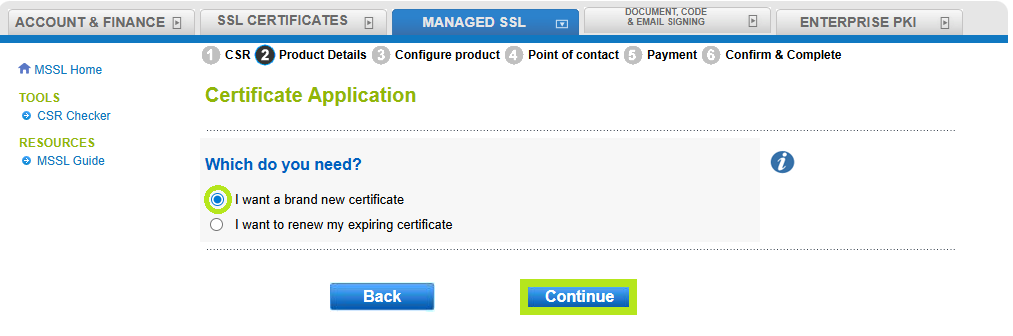
In the next window, select I want a brand new certificate, then click Continue.
-
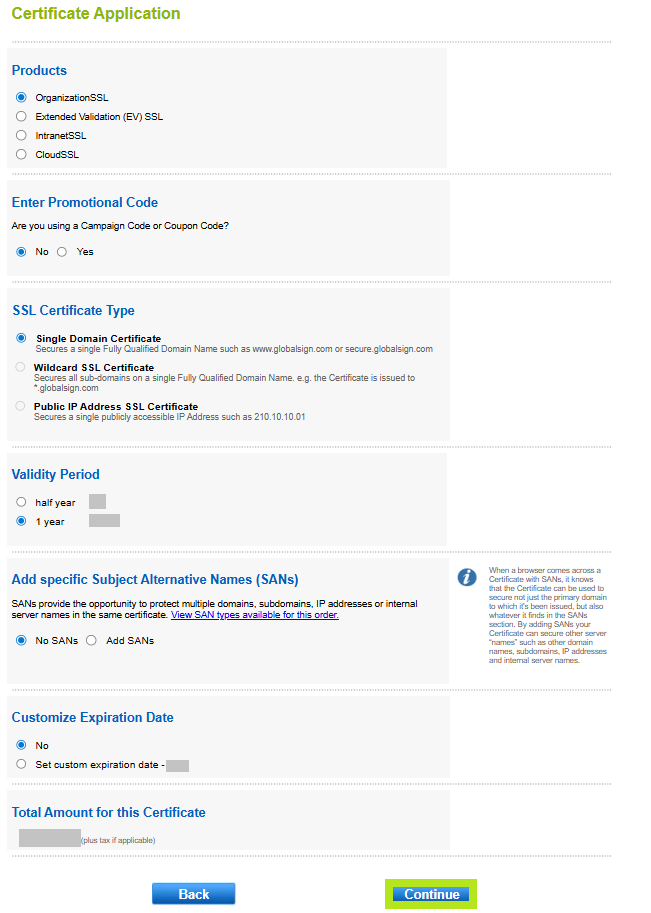
In the Certificate Application window, select the product you want to order from the Products group, then choose your preferred Certificate Type Validity Period, with the option to add SANs. You may also enter your promotional code if you have any and customize the Certificate expiration date if needed. At the bottom of the page, you will see the total amount of your order. Click Continue to proceed.
INFORMATION: In this example, OrganizationSSL is selected. The following steps and images may vary depending on the product you wish to purchase. However, the standard ordering procedure remains the same. If you have questions or clarifications, contact support for assistance.
-
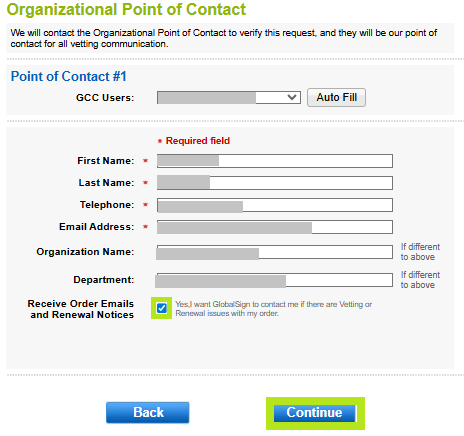
In the Organizational Point of Contact window, fill out the required fields to add a Point of Contact for certificate delivery and/or vetting issues. Then, click Continue. Note: If you have previously filled out these fields, click Auto Fill to populate the information you have provided previously.
IMPORTANT: To ensure you receive renewal notices, we recommend selecting the Receive Order Emails and Renewal Notices checkbox. If you want to disable the renewal email notification, please refer to this guide.
-
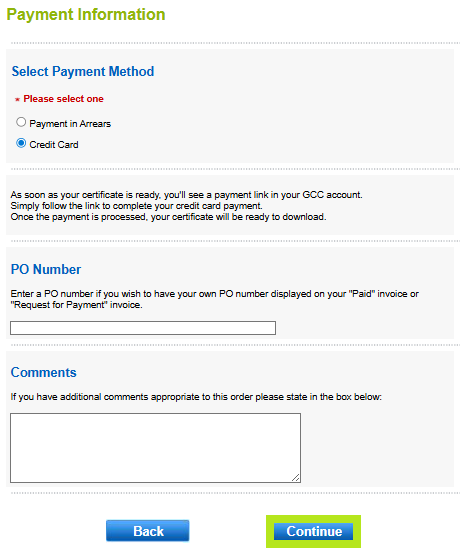
In the Payment Information window, select your preferred payment method.
IMPORTANT: For credit card payments, you will receive an email with a link to process your payment before your certificate is issued. This payment link is available on the GCC portal. For instructions on how to process payment for your certificate, please refer to this guide.
-
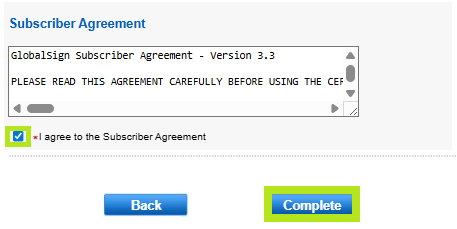
Review all the information you supplied, then tick *I agree to the Subscriber Agreement, and click Complete.
-
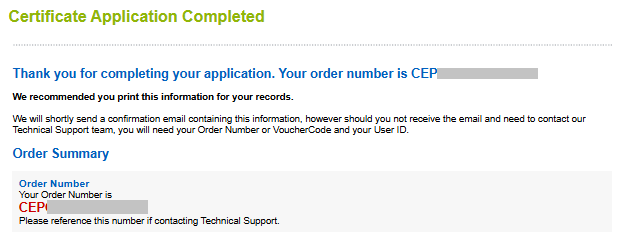
You have successfully placed your order, and the Certificate will be issued shortly.
|
WHAT'S NEXT: Your certificate will be ready to download and install. For certificate installation instructions, please refer to this guide. If you have questions or clarifications, contact support for assistance. |
Related Articles
SSL Configuration Test
Check your certificate installation for SSL issues and vulnerabilities.